
Click-action CSS3 dropdown menu with jQuery
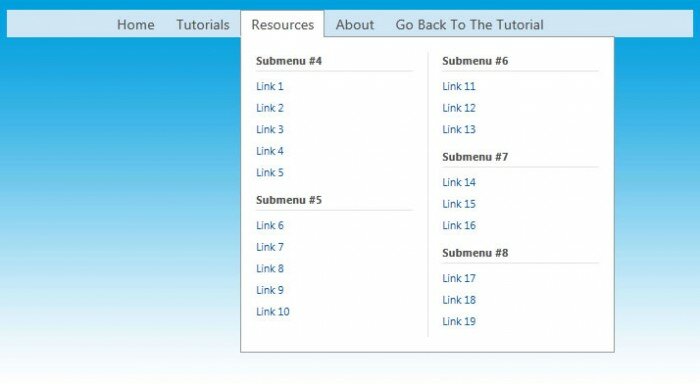
Nowadays, pure CSS3 menus still very popular. Mostly – this is UL-LI based menus. Today we will continue making nice menus for you. This will nice dropdown menu (looks like menu at http://www.microsoft.com/) with onclicking (instead onhover).
Here are samples and downloadable package:
Live Demo
[sociallocker]
download in package
[/sociallocker]
Ok, download the example files and lets start coding !
Step 1. HTML + JS
As usual, we start with the HTML.
Here are full html code with our menu. As you can see – this is multilevel menu. I hope that you can easy to understand it. Whole menu built on UL-LI elements.
index.html
<link rel="stylesheet" href="css/style.css" type="text/css" media="screen">
<script type="text/javascript" src="http://ajax.googleapis.com/ajax/libs/jquery/1.4.2/jquery.min.js"></script>
<div class="example">
    <div class="menu">
        <span>
            <ul id="nav">
                <li><a href="#">Home</a></li>
                <li><a href="#">Tutorials</a>
                    <div class="subs">
                        <div>
                            <ul>
                                <li><h3>Submenu #1</h3>
                                    <ul>
                                        <li><a href="#">Link 1</a></li>
                                        <li><a href="#">Link 2</a></li>
                                        <li><a href="#">Link 3</a></li>
                                        <li><a href="#">Link 4</a></li>
                                        <li><a href="#">Link 5</a></li>
                                    </ul>
                                </li>
                                <li><h3>Submenu #2</h3>
                                    <ul>
                                        <li><a href="#">Link 6</a></li>
                                        <li><a href="#">Link 7</a></li>
                                        <li><a href="#">Link 8</a></li>
                                    </ul>
                                </li>
                                <li><h3>Submenu #3</h3>
                                    <ul>
                                        <li><a href="#">Link 9</a></li>
                                        <li><a href="#">Link 10</a></li>
                                    </ul>
                                </li>
                            </ul>
                        </div>
                    </div>
                </li>
                <li><a href="#">Resources</a>
                    <div class="subs">
                        <div class="wrp2">
                            <ul>
                                <li><h3>Submenu #4</h3>
                                    <ul>
                                        <li><a href="#">Link 1</a></li>
                                        <li><a href="#">Link 2</a></li>
                                        <li><a href="#">Link 3</a></li>
                                        <li><a href="#">Link 4</a></li>
                                        <li><a href="#">Link 5</a></li>
                                    </ul>
                                </li>
                                <li><h3>Submenu #5</h3>
                                    <ul>
                                        <li><a href="#">Link 6</a></li>
                                        <li><a href="#">Link 7</a></li>
                                        <li><a href="#">Link 8</a></li>
                                        <li><a href="#">Link 9</a></li>
                                        <li><a href="#">Link 10</a></li>
                                    </ul>
                                </li>
                            </ul>
                            <p class="sep"></p>
                            <ul>
                                <li><h3>Submenu #6</h3>
                                    <ul>
                                        <li><a href="#">Link 11</a></li>
                                        <li><a href="#">Link 12</a></li>
                                        <li><a href="#">Link 13</a></li>
                                    </ul>
                                </li>
                                <li><h3>Submenu #7</h3>
                                    <ul>
                                        <li><a href="#">Link 14</a></li>
                                        <li><a href="#">Link 15</a></li>
                                        <li><a href="#">Link 16</a></li>
                                    </ul>
                                </li>
                                <li><h3>Submenu #8</h3>
                                    <ul>
                                        <li><a href="#">Link 17</a></li>
                                        <li><a href="#">Link 18</a></li>
                                        <li><a href="#">Link 19</a></li>
                                    </ul>
                                </li>
                            </ul>
                        </div>
                    </div>
                </li>
                <li><a href="https://www.script-tutorials.com/about/">About</a></li>
                <li><a href="https://www.script-tutorials.com/click-action-css3-dropdown-menu-with-jquery/">Go Back To The Tutorial</a></li>
            </ul>
        </span>
    </div>
</div>
<script type="text/javascript">
jQuery(window).load(function() {
    $("#nav > li > a").click(function (e) { // binding onclick
        if ($(this).parent().hasClass('selected')) {
            $("#nav .selected div div").slideUp(100); // hiding popups
            $("#nav .selected").removeClass("selected");
        } else {
            $("#nav .selected div div").slideUp(100); // hiding popups
            $("#nav .selected").removeClass("selected");
            if ($(this).next(".subs").length) {
                $(this).parent().addClass("selected"); // display popup
                $(this).next(".subs").children().slideDown(200);
            }
        }
        e.stopPropagation();
    });
    $("body").click(function () { // binding onclick to body
        $("#nav .selected div div").slideUp(100); // hiding popups
        $("#nav .selected").removeClass("selected");
    });
});
</script>
In bottom – we can see extra jQuery code. Here are onclick events and a little of animation.
Step 2. CSS
Here are used CSS styles. First two selectors – layout of our demo page. All rest – belong to menu.
css/style.css
/* demo page styles */
body {
    background:#eee;
    margin:0;
    padding:0;
    font-family:Segoe UI,Tahoma,Arial,Verdana,sans-serif;
}
.example {
    background:#fff url(../images/blue.jpg);
    width:700px;
    height:500px;
    border:1px #000 solid;
    margin:20px auto;
    padding:15px;
    border-radius:3px;
    -moz-border-radius:3px;
    -webkit-border-radius:3px;
}
/* main menu styles */
.menu {
    background-color:#d0e6f5;
    text-align:center;
    width:100%;
}
.menu > span {
    display:inline-block;
    margin:0 auto;
}
#nav {
    display:inline;
    text-align:left;
    position:relative;
    list-style-type:none;
}
#nav > li {
    float:left;
    padding:0;
    position:relative;
}
#nav > li > a {
    border:1px solid transparent;
    color:#4F4F4F;
    display:block;
    font-size:90%;
    padding:3px 10px;
    position:relative;
    text-decoration:none;
}
#nav > li > a:hover {
    background-color:#e4ecf4;
    border-color:#999
}
#nav > li.selected  > a {
    background-color:#FFFFFF;
    border-color:#999999 #999999 #FFFFFF;
    z-index:2;
}
#nav li div {
    position:relative;
}
#nav li div div {
    background-color:#FFFFFF;
    border:1px solid #999999;
    padding:12px 0;
    display:none;
    font-size:0.75em;
    margin:0;
    position:absolute;
    top:-1px;
    z-index:1;
    width:190px;
}
#nav li div div.wrp2 {
    width:380px;
}
#nav .sep {
    left:190px;
    border-left:1px solid #E3E3E3;
    bottom:0;
    height:auto;
    margin:15px 0;
    position:absolute;
    top:0;
    width:1px;
}
#nav li div ul {
    padding-left:10px;
    padding-right:10px;
    position:relative;
    width:170px;
    float:left;
    list-style-type:none;
}
#nav li div ul li {
    margin:0;
    padding:0;
}
#nav li div ul li h3 {
    border-bottom:1px solid #E3E3E3;
    color:#4F4F4F;
    font-weight:bold;
    margin:0 5px 4px;
    font-size:0.95em;
    padding-bottom:3px;
    padding-top:3px;
}
#nav li ul ul {
    padding:0 0 8px;
}
#nav li ul ul li {
    margin:0;
    padding:0;
}
#nav li ul ul li a {
    color:#0060A6;
    display:block;
    margin-bottom:1px;
    padding:3px 5px;
    text-decoration:none;
    font-size:0.9em;
}
#nav li ul ul li a:hover{
    background-color:#0060a6;
    color:#fff;
}
Live Demo
Conclusion
Hope you enjoyed with this tutorial, don’t forget to tell thanks and leave a comment :) Good luck!


I love this site. i will certainly continue to visit it
Hi.
Thanks for the tip. It is very nice.
But I would like to know how to make the tabs menu automatically hide when you lose focus on them.
Hi Peke,
as example – you can add event handler to click to another area (body as example).
and remove all selected elements in this case.
If only it could work on IE8…
This menu has any problems with IE8?
Now I have installed IE9, but I tested it in compatibility mode for IE8, and the menu worked well. What about you?
Could you please help with hiding tabs menu the way Peke asked? My jQuery knowledge is very limited. I tried but with no luck…
Hello Alex,
Yes, sure, I have updated JS code of this menu, now it can be closed with clicking outside.
Thank you so much! Works like a charm.
Waiting for more great tuts ;)
Nice.. But i want to convert this in to a function… can you please help me in that…
Thanks in advance…
Hello Gaurav,
What do you mean – function? Do you want to turn it into jQuery plugin?
Nice… :)
But i want to convert this into a jquery plugin so that i can use one code for many dropdowns…
can you please help me in that…
Thanks in advance…
Hello here,
Then, if you would like to have it to multiple menu instances, you have to change jQuery selector ‘#nav’ to another (try to select instances bu Class name).
And after, under ‘click’ handler – use $(this).
This is an awesome menu but I’m looking for what Peke was looking to do also. When you finish tabbing down the menu, after the last selection and it moves onto the next tab element on the page, that the menu disappears. I can’t set the next tab element because the menu will be used on different pages that have varied content and we don’t want to have to go out of order on the page.
Hello homeruntaz,
I didn’t get your problem exactly. But yes, by default, none of tabs is selected. We can use ‘tab’ key to select other menu tabs. Then we can click on some tab to get sub-elements (dropdown menu). Now, all active elements (tabs, and all elements in that dropdown) will be selectable. It means that we can select any element. We also can use ‘tab’ key to switch between them. If we click ‘enter’ at any of elements from dropdown – it will open this link, in case if we click at ‘tab’ element (top level menu element) – it will open a new tab (as expected). As I see – Peke asked about loosing of focus.
Hi, menu is great in Chrome and Firefox.
I can provide screen captures of IE8 and IE9 to show you what I think Syndrael means in his message.
Anyway I can send you these jpg?
Hi Stephane,
Yes, sure, you can contact me directly (use the form at the bottom of our website to contact with me directly)
Hey great tutorial. However, I have a problem. I need it so the main menu links can actually be links but they don’t respond unless jquery isn’t supported in their browser. I was using something like this but yours turned out to be a lot cleaner of an outcome:
http://jsfiddle.net/XwN2L/1063/
It has the effect I want for an example. Any way of getting this?
Sorry to bother you, but I really like the menu system you have in this jsfiddle link. I’m using it on my site, but I’m having trouble styling the ‘buttons’ to be another color on hover, and I’d also like to style the button when the target under it is visible, so the user can better identify which ‘button’ they are on.
I can get a hover element to show in your jsfiddle, but not on the site I’m testing
Any help you can give if you have time would be greatly appreciated!!
Hi Mark,
Default styles of the hovered elements are defined on line 51: #nav > li > a:hover, you may customize these styles accordingly your needs
Hey, figured this out :} e.preventDefault();
$(“#nav > li > a”).click(function (e) { // binding onclick
if ($(this).parent().hasClass(‘selected’)) {
e.preventDefault();
$(“#nav .selected div div”).slideUp(100); // hiding popups
$(“#nav .selected”).removeClass(“selected”);
} else {
$(“#nav .selected div div”).slideUp(100); // hiding popups
$(“#nav .selected”).removeClass(“selected”);
if ($(this).next(“.subs”).length) {
e.preventDefault();
$(this).parent().addClass(“selected”); // display popup
$(this).next(“.subs”).children().slideDown(200);
}
}
e.stopPropagation();
});
Hello Skye,
Sorry for my delay, I had to answer older comments first before I find your comment. And, this is good that you already solved your problem.
Thank you for sharing about drop down menu.
That’s great, but it is not doing well on my blog
This is a really nice script. But I am getting one problem with it. The very last menu item is appearing very down to the actual menu’s horizontal level. Please check the demo, If I’m clear to you?
What could be the possible reason for that. Overall its great one. Cheers!
Hi Mekey,
What do you mean – very down? All the menu elements are in the single horizontal line (on the same level), nothing is wrong with it.
hello your menu is fantastic, I’m trying to create a function with the exit of SetTimer submenu, and return on ClearTimer when sulmenu. any ideas on how to do? I did a lot of tests without success :-( thanx
Hello daniele,
Can you clarify your question? It is not clear, what timer you mentioned? We don’t use any timers for our menu.
thanks for sharing this, but it wont vailidate. Is there a way to fix that???
Hi Odette,
What do you mean?
I’m finding the same as Mekey. It works well in IE, but in Chrome the last top-level menu item is displayed on the line below on the right. I’ve fiddled around with the code and no matter how many top-menu level items you have, it’s always the last one.
Hi Phil,
You can also try next styles for the parent element:
#nav {
display: block;
height: 28px;
list-style-type: none;
margin: 0;
padding: 0;
position: relative;
text-align: left;
}
Hi, Great menu, im not a programmer, but was able to get it to work. I have one question, is there any change of converting the onclick to a hover? wit an exit timer when it looses focus??
Or is that a silly question.
All the best, 73.
Wijnand
Hi Wijnand,
In case if you want to have a menu with only onhover behavior, you don’t need to use jquery at all (but you can).
You can use ‘jquery.hover’ function (instead of ‘jquery.click’) in your case.
I did that, but somehow the menu won’t stick. as soon as i move my mouse pointer away from the menu my submenu is a gonner..
I calls for a little more research I think. Is there an easy way to make the sub menu stick until you really move away from it. (of the div.)
All the best, 73.
Wijnand
I update the script to an mouseover scripts.
                              // li > a").mouseover(function () { // binding onclick

                              if ($(this).parent().hasClass('selected')) {

                              $("#nav .selected div div").slideUp(200); // hiding popups

                              $("#nav .selected").removeClass("selected");

                              } else {

                              $("#nav .selected div div").slideUp(200); // hiding popups

                              $("#nav .selected").removeClass("selected");
if ($(this).next(".subs").length) {

                              $(this).parent().addClass("selected"); // display popup

                              $(this).next(".subs").children().slideDown(300);

                              }

                              }

                              });

                              $("#nav > li > div > div").mouseleave(function () { // close on leave

                              $("#nav .selected div div").slideUp(200); // hiding popups

                              $("#nav .selected").removeClass("selected");

                              });

                              });

                              // ]]>
Hello our friend,
I am happy to see that you finally figured it out how to turn this menu to onhover-based menu
Thanks for the script.
I have a contact form on that page and I cannot fill the fields.
I know it is an interference with the hover effect but I’m clueless on how to fix this…
Can you help?
Thank you :)
Hi Brigitte,
Yes, possible, what is your webpage address, so I can have a look?
Firstly, thank you so much, just wish you had ranked a little higher for my search term, had to sift through quite a lot of mire before getting here. (“onclick open menu free” page 6)
Got thrown a little as the code on this page (which does what I want) seems to differ from the code in the download, its that extra jQuery at the end for the closing when clicking on page.
Finally could you very politely tell me where to stick that final script bit. As your example is basically just the menu I’m not sure if it should come directly after the html for the menu on my page or right at the end of the page.
Anyway another final thanks for your work. This is just what I needed.
Hi,
this is a very cool script!
But i have a problem with the automatic opening of the drop-down.
First all was fine but after i changed the number of menu points the mouseover-effect “collapses”…
Can you please help me why this is happening????
Website: http://www.geschenkideen-finder.de
THANKS!!!!
Hi Chris,
Do you use our menu at your website or not? By the way – there are multiple JS errors at your website – you need to fix all the errors
Hi Andrey,
thanks for your message.
I used the Script from your site with the “mouseover scripts” from W.Laros and modified it only for optical resons.
The script is also working fine without images. When I use images instead of text the drop-down effect is gone when the mousefocus is on the linked image “Home”, “Kategorie” and so on. So there is an issue with the image, because it is in the foreground and the link with the drop-down is behind it.,.
Yep i have to fix the JS problems but they are only from other scripts and they weren’t found, sodidn’t effect the dropdown.
With kindly regards
Chris
Hi Chris,
I doubted that this is not our menu by many reasons:
layout is slightly different, another classes of elements (for example – we don’t use classes like: navfont or last), different css styles, and even different behavior (our menu is click-action, your is drop down on hover). This is why I am confused :-)
PS – there are still JS errors at your website – just open firebug’s console to find them
hey , i have shared the link on all the social media as provided and i still ahve not got the download package link , can someone help ?
Hi Avi,
We updated it with the latest version, now it should work perfectly
is there anyway we can create this as bottom up.
I’ve a link at the bottom of the site…
I wish when someone clicks on that… a menu should open… from bottom to up…
Any help on this will be highly regarded.
Thanks!
Hi Vijay, this is easy to achieve: first, you need to align the menu to bottom, after you need to modify styles of #nav li div div element: change top:-1px to bottom: 27px. That’s it