
Neat and modern header section with CSS3
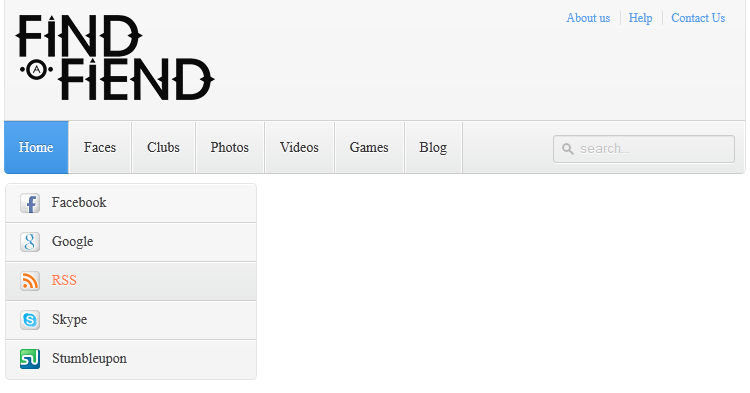
Have you thought about remaking your website header section? As you know – this is the most important section of any website. First of all, all visitors are paying attention on this part of the site. And, the more clean and tidy it is, the better opinions on your site get visitors. In our today’s article I will show you how to create high-quality and modern header for your site. This header will include a logo, several links in the upper right corner, drop-down navigation menu and search form.
Before we start, I would like to show you what exactly we are going to buid:
Live Demo
[sociallocker]
download in package
[/sociallocker]
Now, let’s download the sources and start coding !
Step 1. HTML
In the most beginning, we have to define our header with all mentioned elements:
index.html
<div id="header">
    <!-- logo -->
    <a href="#" id="logo"><img src="images/logo.png"></a>
    <!-- extra top links -->
    <div id="links">
        <a href="#">About us</a>
        <a href="#">Help</a>
        <a href="#">Contact Us</a>
    </div>
    <!-- navigation menu -->
    <div id="navmenu">
        <nav id="menu">
            <ul>
                <li class="active"><a href="index.php">Home</a>
                    <ul>
                        <li><a href="#"><span class="icon elem1"></span>Facebook</a></li>
                        <li><a href="#"><span class="icon elem2"></span>Google</a></li>
                        <li><a href="#"><span class="icon elem3"></span>RSS</a></li>
                        <li><a href="#"><span class="icon elem4"></span>Skype</a></li>
                        <li><a href="#"><span class="icon elem5"></span>Stumbleupon</a></li>
                    </ul>
                </li>
                <li><a href="#">Faces</a>
                    <ul>
                        <li><a href="#"><span class="icon elem0"></span>menu element 1</a></li>
                        <li><a href="#"><span class="icon elem0"></span>menu element 2</a></li>
                        <li><a href="#"><span class="icon elem0"></span>menu element 3</a></li>
                        <li><a href="#"><span class="icon elem0"></span>menu element 4</a></li>
                        <li><a href="#"><span class="icon elem0"></span>menu element 5</a></li>
                    </ul>
                </li>
                <li><a href="#">Clubs</a>
                    <ul>
                        <li><a href="#"><span class="icon elem0"></span>menu element 1</a></li>
                        <li><a href="#"><span class="icon elem0"></span>menu element 2</a></li>
                        <li><a href="#"><span class="icon elem0"></span>menu element 3</a></li>
                        <li><a href="#"><span class="icon elem0"></span>menu element 4</a></li>
                        <li><a href="#"><span class="icon elem0"></span>menu element 5</a></li>
                    </ul>
                </li>
                <li><a href="#">Photos</a>
                    <ul>
                        <li><a href="#"><span class="icon elem0"></span>menu element 1</a></li>
                        <li><a href="#"><span class="icon elem0"></span>menu element 2</a></li>
                        <li><a href="#"><span class="icon elem0"></span>menu element 3</a></li>
                        <li><a href="#"><span class="icon elem0"></span>menu element 4</a></li>
                        <li><a href="#"><span class="icon elem0"></span>menu element 5</a></li>
                    </ul>
                </li>
                <li><a href="#">Videos</a></li>
                <li><a href="#">Games</a></li>
                <li><a href="#">Blog</a>
                    <ul>
                        <li><a href="#"><span class="icon elem0"></span>menu element 1</a></li>
                        <li><a href="#"><span class="icon elem0"></span>menu element 2</a></li>
                        <li><a href="#"><span class="icon elem0"></span>menu element 3</a></li>
                        <li><a href="#"><span class="icon elem0"></span>menu element 4</a></li>
                        <li><a href="#"><span class="icon elem0"></span>menu element 5</a></li>
                    </ul>
                </li>
                <li><a href="#">Classifieds</a></li>
            </ul>
        </nav>
        <!-- search form -->
        <div id="search">
            <form role="search" method="get">
                <input type="text" placeholder="search..." name="s" value="" autocomplete="off" />
            </form>
        </div>
    </div>
</div>
Everything should be easy to understand. This is quite usual UL-LI based menu plus easy search form
Step 2. CSS
css/main.css
Now, our main step – we have to stylize our prepared header. First of all – general styles for header itself, upper right corner links and logo:
/* header styles */
#header {
    border:1px solid;
    border-color:rgba(0,0,0,0.1);
    border-bottom-color:rgba(0,0,0,0.2);
    border-top:none;
    background:#f7f7f7;
    background:-webkit-linear-gradient(top, #f7f7f7, #f4f4f4);
    background:-moz-linear-gradient(top, #f7f7f7, #f4f4f4);
    background:-o-linear-gradient(top, #f7f7f7, #f4f4f4);
    background:linear-gradient(to bottom, #f7f7f7, #f4f4f4);
    background-clip:padding-box;
    border-radius:0 0 5px 5px;
    margin: auto;
    position: relative;
    width: 1000px;
}
#header a {
    color: #4C9FEB;
}
#header a:hover {
    color: #FF7D4C;
}
#logo {
    float: left;
    margin: 15px 10px;
}
#logo img {
    border: 0;
}
#links {
    float: right;
    font-size: 12px;
    margin: 10px 20px 0;
    overflow: hidden;
    text-shadow: 0 1px 0 #FFFFFF;
}
#links a {
    border-left: 1px solid #DEDEDE;
    margin-left: 7px;
    padding-left: 8px;
    text-decoration: none;
}
#links a:first-child {
    border-width: 0;
}
Now, we have to define styles for our drop down navigation menu (pure CSS3), here is it:
/* navigation menu styles */
#navmenu {
    background: -webkit-linear-gradient(#f6f6f6, #e9eaea) repeat scroll 0 0 transparent;
    background: -moz-linear-gradient(#f6f6f6, #e9eaea) repeat scroll 0 0 transparent;
    background: linear-gradient(#f6f6f6, #e9eaea) repeat scroll 0 0 transparent;
    filter: progid:DXImageTransform.Microsoft.gradient( startColorstr='#f6f6f6', endColorstr='#e9eaea',GradientType=0 );
    border-radius: 0 0 4px 4px;
    border-top: 1px solid #D1D1D1;
    box-shadow: -1px 1px 0 rgba(255, 255, 255, 0.8) inset;
    clear: both;
    height: 51px;
    padding-top: 1px;
}
#menu {
    float: left;
}
#menu a {
    text-decoration: none;
}
#menu ul {
    list-style: none;
    margin: 0;
    padding: 0;
}
#menu > ul > li {
    float: left;
    padding-bottom: 12px;
}
#menu ul li a {
    border-color: #D1D1D1;
    border-image: none;
    border-style: solid;
    border-width: 0 1px 0 0;
    box-shadow: -1px 0 0 rgba(255, 255, 255, 0.8) inset, 1px 0 0 rgba(255, 255, 255, 0.8) inset;
    color: #333333;
    display: block;
    font-size: 14px;
    height: 30px;
    line-height: 30px;
    padding: 11px 15px 10px;
    text-shadow: 0 1px 0 #FFFFFF;
}
#menu ul li a:hover {
    background: -webkit-linear-gradient(#efefef, #e9eaea) repeat scroll 0 0 transparent;
    background: -moz-linear-gradient(#efefef, #e9eaea) repeat scroll 0 0 transparent;
    background: linear-gradient(#efefef, #e9eaea) repeat scroll 0 0 transparent;
    filter: progid:DXImageTransform.Microsoft.gradient( startColorstr='#efefef', endColorstr='#e9eaea',GradientType=0 );
}
#menu > ul > li.active > a {
    background: -webkit-linear-gradient(#55A6F1, #3F96E5) repeat scroll 0 0 transparent;
    background: -moz-linear-gradient(#55A6F1, #3F96E5) repeat scroll 0 0 transparent;
    background: linear-gradient(#55A6F1, #3F96E5) repeat scroll 0 0 transparent;
    filter: progid:DXImageTransform.Microsoft.gradient( startColorstr='#55A6F1', endColorstr='#3F96E5',GradientType=0 );
    border-bottom: 1px solid #2D81CC;
    border-top: 1px solid #4791D6;
    box-shadow: -1px 0 0 #55A6F1 inset, 1px 0 0 #55A6F1 inset;
    color: #FFFFFF;
    margin: -1px 0 -1px -1px;
    text-shadow: 0 -1px 0 rgba(0, 0, 0, 0.3);
}
#menu > ul > li.active > a:hover {
    background: -webkit-linear-gradient(#499FEE, #3F96E5) repeat scroll 0 0 transparent;
    background: -moz-linear-gradient(#499FEE, #3F96E5) repeat scroll 0 0 transparent;
    background: linear-gradient(#499FEE, #3F96E5) repeat scroll 0 0 transparent;
    filter: progid:DXImageTransform.Microsoft.gradient( startColorstr='#499FEE', endColorstr='#3F96E5',GradientType=0 );
}
#menu > ul > li:first-child > a {
    border-radius: 0 0 0 5px;
}
Finally, all we need is to realize – drop-down behavior. I prepared next styles which allow us to slide smoothly down popup menu:
/* dropdown menu */
#menu ul ul {
    background: -webkit-linear-gradient(#F7F7F7, #F4F4F4) repeat scroll 0 0 padding-box transparent;
    background: -moz-linear-gradient(#F7F7F7, #F4F4F4) repeat scroll 0 0 padding-box transparent;
    background: linear-gradient(#F7F7F7, #F4F4F4) repeat scroll 0 0 padding-box transparent;
    filter: progid:DXImageTransform.Microsoft.gradient( startColorstr='#F7F7F7', endColorstr='#F4F4F4',GradientType=0 );
    border: 1px solid rgba(0, 0, 0, 0.1);
    border-radius: 5px 5px 5px 5px;
    box-shadow: 0 1px 0 #FFFFFF inset;
    height: 0;
    margin-top: 10px;
    opacity: 0;
    overflow: hidden;
    padding: 0;
    position: absolute;
    visibility: hidden;
    width: 250px;
    z-index: 1;
    -webkit-transition: all .5s;
    -moz-transition: all .5s;
    -ms-transition: all .5s;
    -o-transition: all .5s;
    transition: all .5s;
}
#menu ul  li:hover ul  {
    height: 195px;
    margin-top: 0\9;
    opacity: 1;
    visibility: visible;
}
#menu ul ul a {
    border-right-width: 0;
    border-top: 1px solid #D1D1D1;
    box-shadow: 0 1px 0 #FFFFFF inset;
    color: #444444;
    height: 24px;
    line-height: 24px;
    padding: 7px 12px;
    text-shadow: 0 1px 0 #FFFFFF;
}
#menu ul ul li:first-child a {
    border-top-width: 0;
}
#menu ul ul a .icon {
    background-position: 50% 50%;
    background-repeat: no-repeat;
    display: block;
    float: left;
    height: 24px;
    margin-right: 10px;
    width: 24px;
}
#menu ul ul a .icon.elem0 {
    background-image: url("../images/elem.png");
}
#menu ul ul a .icon.elem1 {
    background-image: url("../images/fb.png");
}
#menu ul ul a .icon.elem2 {
    background-image: url("../images/go.png");
}
#menu ul ul a .icon.elem3 {
    background-image: url("../images/rs.png");
}
#menu ul ul a .icon.elem4 {
    background-image: url("../images/sk.png");
}
#menu ul ul a .icon.elem5 {
    background-image: url("../images/su.png");
}
/* search bar */
#search {
    margin:13px 10px 0 0;
    float: right;
}
#search form {
    background: url("../images/search.gif") no-repeat scroll 5% 50% transparent;
    border: 1px solid #CCCCCC;
    border-radius: 3px 3px 3px 3px;
    box-shadow: 0 1px 0 rgba(0, 0, 0, 0.05) inset, 0 1px 0 #FFFFFF;
    height: 26px;
    padding: 0 25px;
    position: relative;
    width: 130px;
}
#search form:hover {
    background-color: #F9F9F9;
}
#search form input {
    color: #999999;
    font-size: 13px;
    height: 26px;
    text-shadow: 0 1px 0 #FFFFFF;
    background: none repeat scroll 0 0 transparent;
    border: medium none;
    float: left;
    outline: medium none;
    padding: 0;
    width: 100%;
}
#search form input.placeholder, #search form input:-moz-placeholder {
    color: #C4C4C4;
}
Live Demo
Conclusion
That is all for today. We have just prepared a really nice looking and neat header block with own navigation menu. I’m sure that this material will be very useful for everybody. Good luck and welcome back




Hi
Its a nice tutorial but is not working on IE8. Please help.
Thanks and Regards
It should work in IE9, unfortunately IE8 doesn’t support CSS3 completely
Ohh ! It’s beautiful.
I need some help. I have the gradient for IE working via the “filter” script but my drop downs are not working. Once I take the “filter” script out, the drop downs work. Can you help if I send you the code?
Yes, maybe, I can spend a little time with this, maybe I will be able to figure it out.
Nice one…
Very nice, but what am I missing? I add elements, but can not get menus longer than 5. I’ll keep looking, but I thought I’d ask.
Never mind. It has to do with #menu ul li:hover ul { height: 195px; –needs to be calculated and lengthened accordingly. Thanks.
Great! Suppose I one wants more than 5 levels of drop downs, what then?
Hi Dilip, in this case you can increase the height of #menu ul li:hover ul
Btw how to modify an existing header in the blog? I bag your pardon because i’m newbie..thanks a lot
Hi jalupangna,
What blog did you mean? Your own website? If so – you should just open HTML code of your header section – and work with it.
it is well… i insered this menu bar for my website. but there are some problem …
i have slider bar in my webite home page…n menu’s dropdown box show behind this slider. so what can i do ???
Hi Jitesh,
I can recommend you to check styles of your slider. Make sure that it doesn’t use a high z-index, otherwise, you will need to increase the value of z-index of the popup menu.
I really liked the whole CSS script however, as others stated it really did not work correctly in IE. The other issue I have is that it falls apart when you click the IE Compatibility View. I am not sure if it is all menu scripts with CSS or just yours. I am off to investigate the cause.
Hi April,
It works in IE9 (and higher). You don’t need to use the outdated browser IE8, also you don’t need to use any compatibility view, you always can use the standard view mode.
I was making use of this in my academic project, everybody likes the simplicity of this..
There is an issue of sub menus, I tried adding it but page looked wired after that..
Can you please help me achieve this..
Thanks,
Jagat
Hi Jagat,
It should be easy work to add new menu elements, you may simply copy ready elements, and then – modify them accordingly your needs.