
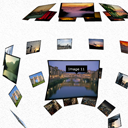
Photo gallery with 3D sphere gallery. Today we will continue overviews of available flash galleries. Next gallery will 3D Sphere Gallery FX. This is great gallery have pretty much settings – we can load dynamic set of images (through PHP), select preloader, orientation (vertical and horizontal), allow us to customize interface (controls, buttons), set properties for items, borders, text, background, shade. I like that sphere gallery!
Here are samples and downloadable package:
Live Demo
[sociallocker]
download in package
[/sociallocker]
Ok, download the example files and lets start coding !
Step 1. HTML
Here are html source code of our sample:
index.html
<link rel="stylesheet" href="css/main.css" type="text/css" />
<script src="js/swfobject.js"></script>
<div class="example">
    <h3><a href="#">3D Sphere Gallery FX example</a></h3>
    <div>
        <div id="Div3DSphereGalleryFX">
            <a href="http://www.adobe.com/go/getflashplayer">
                <img src="http://www.adobe.com/images/shared/download_buttons/get_flash_player.gif" alt="Get Adobe Flash player" />
            </a>
        </div>
        <script type="text/javascript">
            var flashvars = {};
            flashvars.settingsXML= 'app/settings.xml';
            flashvars.folderPath = 'app/'
            var params = {};
            params.scale = 'noscale';
            params.salign = 'tl';
            params.wmode = 'transparent';
            var attributes = {};
            swfobject.embedSWF('app/3DSphereGalleryFX.swf', 'Div3DSphereGalleryFX', '800', '600', '9.0.0', false, flashvars, params, attributes);
        </script>
    </div>
</div>
Initialization is very easy – all through swfobject, where we can set all necessary params: settingsXML (path to settingx XML file), folderPath (folder with swf gallery application and its stuff), wmode etc. Of course – most of design-related params located in that settings.xml file.
Here are necessary JS initialization again (without html code):
    var flashvars = {};
    flashvars.settingsXML= 'app/settings.xml';
    flashvars.folderPath = 'app/'
    var params = {};
    params.scale = 'noscale';
    params.salign = 'tl';
    params.wmode = 'transparent';
    var attributes = {};
    swfobject.embedSWF('app/3DSphereGalleryFX.swf', 'Div3DSphereGalleryFX', '800', '600', '9.0.0', false, flashvars, params, attributes);
Step 2. CSS
Here are used CSS file for our demo (for layout only):
css/main.css
body{background:#eee;font-family:Verdana, Helvetica, Arial, sans-serif;margin:0;padding:0}
.example{background:#FFF;width:800px;font-size:80%;border:1px #000 solid;margin:20px auto;padding:15px;-moz-border-radius: 3px;-webkit-border-radius: 3px}
Step 3. JS
Here are single JS file:
js/swfobject.js
This is just SWFObject class. Available in our package.
Step 4. PHP
Here are code of our XML generator (to generate xml-based set of used images):
feed.php
<?
$sCode = '';
$sTemplate = <<<XML
<photo image="../{fileurl}" colorboxImage="{fileurl}" colorboxInfo="{title}" colorboxClass="image" url = "https://www.script-tutorials.com/" target="_blank">
<![CDATA[<head>{title}</head><body>{width} x {height} image</body>]]></photo>
XML;
$sFolder = 'data_images/';
$aUnits = array(
    'pic1.jpg' => 'Image 1',
    'pic2.jpg' => 'Image 2',
    'pic3.jpg' => 'Image 3',
    'pic4.jpg' => 'Image 4',
    'pic5.jpg' => 'Image 5',
    'pic6.jpg' => 'Image 6',
    'pic7.jpg' => 'Image 7',
    'pic8.jpg' => 'Image 8',
    'pic9.jpg' => 'Image 9',
    'pic10.jpg' => 'Image 10',
    'pic11.jpg' => 'Image 11',
    'pic12.jpg' => 'Image 12',
    'pic13.jpg' => 'Image 13',
    'pic14.jpg' => 'Image 14',
    'pic15.jpg' => 'Image 15',
    'pic16.jpg' => 'Image 16',
    'pic17.jpg' => 'Image 17',
    'pic18.jpg' => 'Image 18',
    'pic19.jpg' => 'Image 19',
    'pic20.jpg' => 'Image 20',
    'pic21.jpg' => 'Image 21',
    'pic22.jpg' => 'Image 22',
    'pic23.jpg' => 'Image 23',
    'pic24.jpg' => 'Image 24',
    'pic25.jpg' => 'Image 25',
    'pic26.jpg' => 'Image 26',
    'pic27.jpg' => 'Image 27',
    'pic28.jpg' => 'Image 28',
    'pic29.jpg' => 'Image 29',
    'pic30.jpg' => 'Image 30',
    'pic31.jpg' => 'Image 31',
    'pic32.jpg' => 'Image 32',
    'pic33.jpg' => 'Image 33',
    'pic34.jpg' => 'Image 34',
    'pic35.jpg' => 'Image 35'
);
foreach ($aUnits as $sFileName => $sTitle) {
    $sFilePath = $sFolder . $sFileName;
    list ($iWidth, $iHeight, $vType, $vAttr) = getimagesize($sFilePath);
    $sCode .= strtr($sTemplate, array('{fileurl}' => $sFilePath, '{title}' => $sTitle, '{width}' => $iWidth, '{height}' => $iHeight));
}
header ('Content-Type: application/xml; charset=UTF-8');
echo <<<EOF
<images>
    {$sCode}
</images>
EOF;
?>
Let’s look at the code in details. Firstly I define template for our image units:
$sTemplate = <<<XML
<photo image="../{fileurl}" colorboxImage="{fileurl}" colorboxInfo="{title}" colorboxClass="image" url = "https://www.script-tutorials.com/" target="_blank">
<![CDATA[<head>{title}</head><body>{width} x {height} image</body>]]></photo>
XML;
Make arrention that we can set URL to our images (currently I linked it to our website), also you can select ‘target’ attribute too. Plus we can display some text (consist of 2 rows) as description of image.
Then, I hardcoded array of used images:
$aUnits = array(
    'pic1.jpg' => 'Image 1',
    'pic2.jpg' => 'Image 2',
    'pic3.jpg' => 'Image 3',
    'pic4.jpg' => 'Image 4',
    'pic5.jpg' => 'Image 5',
    'pic6.jpg' => 'Image 6',
    'pic7.jpg' => 'Image 7',
    'pic8.jpg' => 'Image 8',
    'pic9.jpg' => 'Image 9',
    'pic10.jpg' => 'Image 10',
    'pic11.jpg' => 'Image 11',
    'pic12.jpg' => 'Image 12',
    'pic13.jpg' => 'Image 13',
    'pic14.jpg' => 'Image 14',
    'pic15.jpg' => 'Image 15',
    'pic16.jpg' => 'Image 16',
    'pic17.jpg' => 'Image 17',
    'pic18.jpg' => 'Image 18',
    'pic19.jpg' => 'Image 19',
    'pic20.jpg' => 'Image 20',
    'pic21.jpg' => 'Image 21',
    'pic22.jpg' => 'Image 22',
    'pic23.jpg' => 'Image 23',
    'pic24.jpg' => 'Image 24',
    'pic25.jpg' => 'Image 25',
    'pic26.jpg' => 'Image 26',
    'pic27.jpg' => 'Image 27',
    'pic28.jpg' => 'Image 28',
    'pic29.jpg' => 'Image 29',
    'pic30.jpg' => 'Image 30',
    'pic31.jpg' => 'Image 31',
    'pic32.jpg' => 'Image 32',
    'pic33.jpg' => 'Image 33',
    'pic34.jpg' => 'Image 34',
    'pic35.jpg' => 'Image 35'
);
Of course, you don`t need it in case of you making gallery with different sets of images. In that case I can suggest you to use SQL or another ways to obtain info about images. After it – I passing through all our images and filling info about photos within our predefined template:
foreach ($aUnits as $sFileName => $sTitle) {
    $sFilePath = $sFolder . $sFileName;
    list ($iWidth, $iHeight, $vType, $vAttr) = getimagesize($sFilePath);
    $sCode .= strtr($sTemplate, array('{fileurl}' => $sFilePath, '{title}' => $sTitle, '{width}' => $iWidth, '{height}' => $iHeight));
}
As you can see – I collecting all this into string variable $sCode. In result – we will just echo our result XML:
header ('Content-Type: application/xml; charset=UTF-8');
echo <<<EOF
<images>
    {$sCode}
</images>
EOF;
Done, our generator ready!
Step 5. SWF application
app/3DSphereGalleryFX.swf
Its gallery swf file itself. Available in package. Here are also located another files (assets, other interface elements), settings.xml etc.
Step 6. Images
All our images located in ‘data_images’ folder. Of course, you can use another directory. Don`t forget to correct feed.php if you going to use another folder for images.
Live Demo
Conclusion
Today I told you how to build new type of flash gallery. Sure that you will very happy to use it in your projects. Good luck!