

Robo splash page layout. Today I present you a new layout – Robo splash page. This is will modern looking HTML5 / CSS3 splash page layout which you will able to get for your website. So, let’s go inside and read up – how to make similar page.
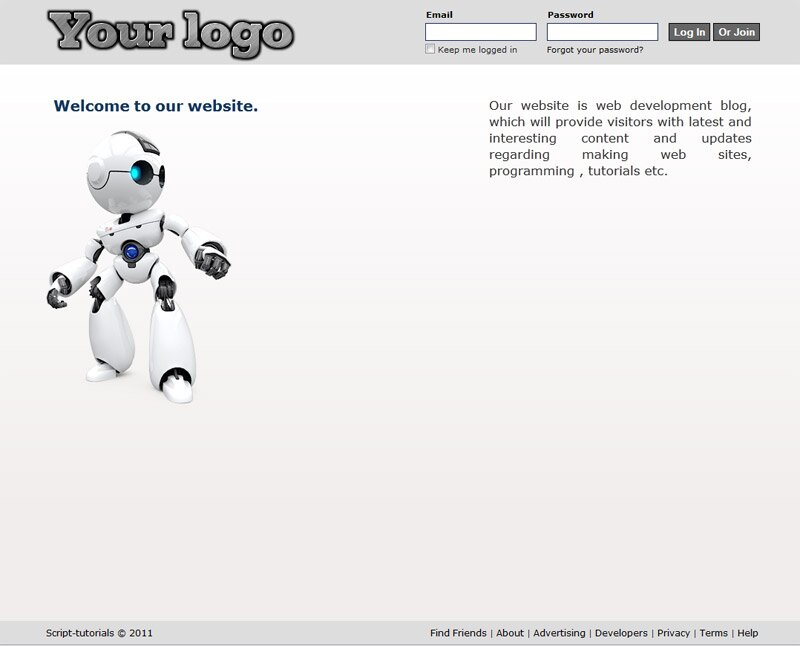
Here are how our final result will looks:
Live Demo
[sociallocker]
download result
[/sociallocker]
Get started
Ok, let`s start. Lets create new folder and few folders inside (to keep all well structured):
- css – which will contain our CSS stylesheets (style.css)
- images – which will contain all used images
- js – will contain JS files (html5.js for today)
Head section code
Now I am going to give you the usual HTML head area of index.html with the attached CSS/JS.
<!DOCTYPE html><!-- The new doctype -->
<html lang="en"><head>
<meta http-equiv="content-type" content="text/html; charset=UTF-8">
    <title>Robo splash page layout | Script tutorials</title>
    <meta charset="utf-8">
    <!-- Linking styles -->
    <link rel="stylesheet" href="css/style.css" type="text/css" media="screen">
    <!--[if lt IE 9]>
    <script type="text/javascript" src="js/html5.js"></script>
    <![endif]-->
<script type="text/javascript">
function hide_by_id(id) {
    if (document.getElementById) {
        document.getElementById(id).style.display = 'none';
    }
    else {
        if (document.layers) {
            document.id.display = 'none';
        } else {
            document.all.id.style.display = 'none';
        }
    }
}
function show_by_id(id) {
    if (document.getElementById) {
        document.getElementById(id).style.display = 'block';
    }
    else {
        if (document.layers) {
            document.id.display = 'block';
        } else {
            document.all.id.style.display = 'block';
        }
    }
}
</script>
</head>
Moving forward – Body
Whole layout consist of 3 main section: header (with logo and login form), main section (promo, info area and join form) and footer (commonly – here are just different links). Whole layout looks like:
<body>
<header><!-- Defining the header section of the page -->
<div class="header_bar">
<a href="https://www.script-tutorials.com/" class="logo"><!-- logo -->
<img src="images/logo.png" title="My logo" alt="My logo" />
</a>
<section id="login"><!-- login form -->
<form action="#" method="POST">
......
</form>
</section>
</div>
</header>
<section id="main"><!-- Defining the main content section -->
<div id="content">
<div id="promo"><!-- promo -->
<div class="title">Welcome to our website.</div>
<div class="img"></div>
</div>
<div id="info"><!-- info block -->
......
</div>
<div id="join" style="display:none"><!-- join form -->
......
</div>
</div>
</section>
<footer><!-- Defining the footer section of the page -->
<div id="links"><!-- extra links -->
<div class="copy">
<div><span> <a href="https://www.script-tutorials.com/creating-a-robo-splash-page-layout">Script-tutorials © 2011</a></span></div>
</div>
<div class="nav">
<a title="Find Friends" href="#">Find Friends</a> |
......
</div>
</div>
</footer>
</body>
here are you can see base CSS styles
/* base styles */
body {
    background-color: #f0edeb;
    color: #333;
    font-family: Verdana,Arial,sans-serif;
    font-size: 11px;
    margin: 0;
    padding: 0;
    text-align: left;
}
a {
    color: #000;
    cursor: pointer;
    text-decoration: none;
}
a:hover {
    text-decoration: underline;
}
label {
    color: #222;
    cursor: pointer;
    font-weight: bold;
    vertical-align: middle;
}
textarea, input[type=text], input[type=password] {
    border: 1px solid #BDC7D8;
    font-family: Verdana,Arial,sans-serif;
    font-size: 11px;
    padding: 3px;
}
select {
    border: 1px solid #BDC7D8;
    font-family: Verdana,Arial,sans-serif;
    font-size: 11px;
    padding: 2px;
}
ul {
    list-style-type: none;
    margin: 0;
    padding: 0;
}
1. Header section with logo and login form

Our header will logo at left and login form at right side. Here are HTML for that section:
<header><!-- Defining the header section of the page -->
    <div class="header_bar">
        <a href="https://www.script-tutorials.com/" class="logo"><!-- logo -->
            <img src="images/logo.png" title="My logo" alt="My logo" />
        </a>
        <section id="login"><!-- login form -->
            <form action="#" method="POST">
                <table cellspacing="0">
                    <tr>
                        <td class="t">
                            <label for="email">Email</label>
                        </td>
                        <td class="t">
                            <label for="pass">Password</label>
                        </td>
                    </tr>
                    <tr>
                        <td>
                            <input type="text" tabindex="1" value="" id="email" name="email">
                        </td>
                        <td>
                            <input type="password" tabindex="2" id="pass" name="pass">
                        </td>
                        <td>
                            <label for="login_btn" class="login_btn">
                                <input type="submit" id="login_btn" tabindex="4" value="Log In">
                            </label>
                            <label for="join_btn" class="join_btn">
                                <input type="button" id="join_btn" tabindex="4" value="Or Join" onclick="hide_by_id('info');show_by_id('join');">
                            </label>
                        </td>
                    </tr>
                    <tr>
                        <td class="b">
                            <div>
                                <input type="checkbox" tabindex="3" value="1" name="keep_logged" id="keep_logged">
                                <label for="keep_logged">Keep me logged in</label>
                            </div>
                        </td>
                        <td class="b">
                            <a rel="nofollow" href="#">Forgot your password?</a>
                        </td>
                    </tr>
                </table>
            </form>
        </section>
    </div>
</header>
CSS for header section
/* header section */
header {
    background-color: #ddd;
    height: 90px;
    min-width: 980px;
    width: 100%;
    z-index: 300;
}
header .header_bar {
    margin: 0 auto;
    overflow: hidden;
    padding-top: 13px;
    width: 964px;
}
header .logo {
    float: left
}
header .logo img {
    border-width:0;
}
header #login {
    float: right
}
header #login table tr {
    vertical-align: top;
}
header #login table tr td {
    padding: 0 0 0 14px;
}
header #login .t {
    padding-bottom: 4px;
}
header #login .t label {
    color: #000;
    font-weight: bold;
    padding-left: 1px;
}
header #login input[type=text], header #login input[type=password] {
    border-color: #1D2A5B;
    margin: 0;
    padding-bottom: 4px;
    width: 142px;
}
header #login .login_btn input, header #login .join_btn input {
    border: 1px solid #000;
    background-color: #666;
    box-shadow: 0 1px 0 rgba(150, 150, 150, 0.5);
    padding: 2px 3px;
    text-align: center;
    text-decoration: none;
    vertical-align: top;
    white-space: nowrap;
    color: #FFF;
    cursor: pointer;
    display: inline-block;
    font-weight: bold;
    margin: 0;
    outline: medium none;
}
header #login .login_btn input:active {
    background: none repeat scroll 0 0 #000;
}
header #login .b {
    padding-top: 4px;
}
header #login .b input[type=checkbox] {
    float: left;
    margin: 0;
    padding: 0;
}
header #login .b label {
    display: block;
    font-weight: normal;
    margin-left: 17px;
    vertical-align: baseline;
}
header #login .b a {
    font-weight: normal;
}
2. Main content section
After our header area – we have main content area. At left side it contain promo image, and little Info block with description of our website. Plus, when we will click to Join button – join form will appear at right side instead Info block.

<section id="main"><!-- Defining the main content section -->
    <div id="content">
        <div id="promo"><!-- promo -->
            <div class="title">Welcome to our website.</div>
            <div class="img"></div>
        </div>
        <div id="info"><!-- info block -->
            <div class="title">
                Our website is web development blog, which will provide visitors with latest and interesting content and updates regarding making web sites, programming , tutorials etc.
            </div>
        </div>
        <div id="join" style="display:none"><!-- join form -->
            <div class="title">
                <div class="l1">Sign Up</div>
                <div class="l2">Today for a free.</div>
            </div>
            <div class="cont">
                <form>
                    <table cellpadding="1" cellspacing="0">
                        <tr>
                            <td class="label"><label for="firstname">First Name:</label></td>
                            <td><div class="field_container"><input class="inputtext" id="firstname" name="firstname" type="text"></div></td>
                        </tr>
                        <tr>
                            <td class="label"><label for="lastname">Last Name:</label></td>
                            <td><div class="field_container"><input class="inputtext" id="lastname" name="lastname" type="text"></div></td>
                        </tr>
                        <tr>
                            <td class="label"><label for="reg_email__">Your Email:</label></td>
                            <td><div class="field_container"><input class="inputtext" id="reg_email__" name="reg_email__" type="text"></div></td>
                        </tr>
                        <tr>
                            <td class="label"><label for="reg_email_confirmation__">Re-enter Email:</label></td>
                            <td><div class="field_container"><input class="inputtext" id="reg_email_confirmation__" name="reg_email_confirmation__" type="text"></div></td>
                        </tr>
                        <tr>
                            <td class="label"><label for="reg_passwd__">New Password:</label></td>
                            <td><div class="field_container"><input class="inputtext" id="reg_passwd__" name="reg_passwd__" value="" type="password"></div></td>
                        </tr>
                        <tr>
                            <td class="label">I am:</td><td>
                                <div class="field_container">
                                    <select class="select" name="sex" id="sex">
                                        <option value="0">Select Sex:</option>
                                        <option value="1">Female</option>
                                        <option value="2">Male</option>
                                    </select>
                                </div>
                            </td>
                        </tr>
                        <tr>
                            <td class="label">Birthday:</td>
                            <td>
                                <div class="field_container">
                                    <select name="birthday_month" id="birthday_month">
                                        <option value="-1">Month:</option>
                                        <option value="1">Jan</option>
                                        <option value="2">Feb</option>
                                        <option value="3">Mar</option>
                                        <option value="4">Apr</option>
                                        <option value="5">May</option>
                                        <option value="6">Jun</option>
                                        <option value="7">Jul</option>
                                        <option value="8">Aug</option>
                                        <option value="9">Sep</option>
                                        <option value="10">Oct</option>
                                        <option value="11">Nov</option>
                                        <option value="12">Dec</option>
                                    </select>
                                    <select name="birthday_day" id="birthday_day">
                                        <option value="-1">Day:</option>
                                        <option value="1">1</option>
                                        <option value="2">2</option>
                                        <option value="3">3</option>
                                        <option value="4">4</option>
                                        <option value="5">5</option>
                                        <option value="6">6</option>
                                        <option value="7">7</option>
                                        <option value="8">8</option>
                                        <option value="9">9</option>
                                        <option value="10">10</option>
                                        <option value="11">11</option>
                                        <option value="12">12</option>
                                        <option value="13">13</option>
                                        <option value="14">14</option>
                                        <option value="15">15</option>
                                        <option value="16">16</option>
                                        <option value="17">17</option>
                                        <option value="18">18</option>
                                        <option value="19">19</option>
                                        <option value="20">20</option>
                                        <option value="21">21</option>
                                        <option value="22">22</option>
                                        <option value="23">23</option>
                                        <option value="24">24</option>
                                        <option value="25">25</option>
                                        <option value="26">26</option>
                                        <option value="27">27</option>
                                        <option value="28">28</option>
                                        <option value="29">29</option>
                                        <option value="30">30</option>
                                        <option value="31">31</option>
                                    </select>
                                    <select name="birthday_year" id="birthday_year">
                                        <option value="-1">Year:</option>
                                        <option value="2011">2011</option>
                                        <option value="2010">2010</option>
                                        <option value="2009">2009</option>
                                        <option value="2008">2008</option>
                                        <option value="2007">2007</option>
                                        <option value="2006">2006</option>
                                        <option value="2005">2005</option>
                                        <option value="2004">2004</option>
                                        <option value="2003">2003</option>
                                        <option value="2002">2002</option>
                                        <option value="2001">2001</option>
                                        <option value="2000">2000</option>
                                        <option value="1999">1999</option>
                                        <option value="1998">1998</option>
                                        <option value="1997">1997</option>
                                        <option value="1996">1996</option>
                                        <option value="1995">1995</option>
                                        <option value="1994">1994</option>
                                        <option value="1993">1993</option>
                                        <option value="1992">1992</option>
                                        <option value="1991">1991</option>
                                        <option value="1990">1990</option>
                                        <option value="1989">1989</option>
                                        <option value="1988">1988</option>
                                        <option value="1987">1987</option>
                                        <option value="1986">1986</option>
                                        <option value="1985">1985</option>
                                        <option value="1984">1984</option>
                                        <option value="1983">1983</option>
                                        <option value="1982">1982</option>
                                        <option value="1981">1981</option>
                                        <option value="1980">1980</option>
                                    </select>
                                </div>
                            </td>
                        </tr>
                    </table>
                    <div class="join_btn">
                        <input value="Sign Up" id="join_btn" type="submit">
                    </div>
                </form>
            </div>
        </div>
    </div>
</section>
CSS for Main content section
/* main section */
#main {
    background: -moz-linear-gradient(#ffffff, #f0edeb); /* FF 3.6+ */
    background: -ms-linear-gradient(#ffffff, #f0edeb); /* IE10 */
    background: -webkit-gradient(linear, left top, left bottom, color-stop(0%, #ffffff), color-stop(100%, #f0edeb)); /* Safari 4+, Chrome 2+ */
    background: -webkit-linear-gradient(#ffffff, #f0edeb); /* Safari 5.1+, Chrome 10+ */
    background: -o-linear-gradient(#ffffff, #f0edeb); /* Opera 11.10 */
    filter: progid:DXImageTransform.Microsoft.gradient(startColorstr='#ffffff', endColorstr='#f0edeb'); /* IE6 & IE7 */
    -ms-filter: "progid:DXImageTransform.Microsoft.gradient(startColorstr='#ffffff', endColorstr='#f0edeb')"; /* IE8+ */
    background: linear-gradient(#ffffff, #f0edeb); /* the standard */
    position: relative;
}
#main #content {
    margin: 0 auto;
    min-height: 600px;
    overflow: hidden;
    width: 980px;
}
#main #content #promo {
    float:left;
    padding-left: 10px;
    width: 550px;
}
#main #content #promo .title {
    color: #0E385F;
    font-size: 20px;
    font-weight: bold;
    line-height: 29px;
    margin-top: 40px;
    padding-left: 10px;
    width: 450px;
    word-spacing: -1px;
}
#main #content #promo .img {
    background: url("../images/robo.png") no-repeat scroll 0 0 transparent;
    height: 400px;
    margin-top: 20px;
}
#main #content #info {
    float: right;
    padding: 43px 0 0 15px;
    width: 383px;
}
#main #content #info .title {
    font-size: 17px;
    margin-bottom: 10px;
    padding-left: 10px;
    padding-right: 10px;
    text-align: justify;
    width: 354px;
}
#main #content #join {
    float: right;
    padding: 43px 0 0 15px;
    width: 383px;
}
#main #content #join .title {
    border-bottom: 1px solid #9AAFCA;
    margin-bottom: 10px;
    padding-left: 10px;
    padding-right: 10px;
    text-align: right;
    width: 354px;
}
#main #content #join .title .l1 {
    font-size: 18px;
    font-weight: bold;
    margin-bottom: 5px;
}
#main #content #join .title .l2 {
    font-size: 15px;
    font-weight: normal;
    margin-bottom: 10px;
}
#main #content #join .cont {
    padding-bottom: 30px;
}
#main #content #join table {
    margin: 0 0 7px;
}
#main #content #join table td.label {
    color: #000;
    font-size: 13px;
    padding-right: 3px;
    text-align: right;
    width: 105px;
}
#main #content #join table label {
    color: #000;
    font-weight: normal;
    vertical-align: middle;
}
#main #content #join .field_container {
    display: inline-block;
    position: relative;
    width: auto;
}
#main #content #join .field_container input {
    border-color: #96A6C5;
    font-size: 16px;
    margin-top: 2px;
    padding: 6px;
    width: 250px;
}
#main #content #join .field_container select {
    border-color: #96A6C5;
    font-size: 13px;
    height: 30px;
    margin: 2px 0 0;
    padding: 5px;
}
#main #content #join .join_btn {
    margin: 0 0 0 110px;
}
#main #content #join .join_btn input[type=submit] {
    border: 1px solid #000;
    background-color: #666;
    box-shadow: 0 1px 0 rgba(150, 150, 150, 0.5);
    padding: 8px;
    text-align: center;
    text-decoration: none;
    vertical-align: top;
    white-space: nowrap;
    color: #FFF;
    cursor: pointer;
    display: inline-block;
    font-size: 14px;
    font-weight: bold;
    margin: 0;
    outline: medium none;
}
#main #content #join .join_btn input[type=submit]:active {
    background: none repeat scroll 0 0 #000;
}
3. Footer section
Finally, here are our footer area

<footer><!-- Defining the footer section of the page -->
<div id="links"><!-- extra links -->
<div class="copy">
<div><span> <a href="https://www.script-tutorials.com/creating-a-robo-splash-page-layout">Script-tutorials © 2011</a></span></div>
</div>
<div class="nav">
<a title="Find Friends" href="#">Find Friends</a> |
<a title="About" href="#">About</a> |
<a title="Advertising" href="#">Advertising</a> |
<a title="Developers" href="#">Developers</a> |
<a title="Privacy" href="#">Privacy</a> |
<a title="Terms" href="#">Terms</a> |
<a title="Help" href="#">Help</a>
</div>
</div>
</footer>
CSS for footer section
/* footer section */
footer {
    background-color: #ddd;
    bottom: 0;
    padding: 8px 0;
    position: fixed;
    text-align: center;
    width: 100%;
}
footer #links {
    margin:0 auto;
    overflow:hidden;
    position: relative;
    width: 960px;
}
footer #links .copy {
    margin-right: 20px;
    float: left;
    color:#808080;
}
footer #links .nav {
    text-align: right;
}
footer #links a {
    color: #000000;
    font-size: 12px;
    text-decoration: none;
}
footer #links a:hover {
    text-decoration: none;
}
Live Demo
Conclusion
Now our layour finally complete! You can use this as is, but please leave the back link to us intact. Don`t forget to say thanks :) Good luck!


Errors found while checking this document as HTML5!
Result: 4 Errors, 3 warning(s)
+++PLUS+++
There is many unnecessary code in your page…
E.g.
-> type=”text/javascript” is default and not necessary
Or doubled charset-declaration…
Better use XHTML1.1
Thanks for notification. At next time I will be more careful
Nice tutorial, it’s very useful for me, thanks for tutorial :)
What front and text style is the logo? It looks pretty awesome :-)