
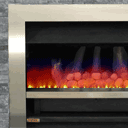
HTML5 fire effect tutorial. New interesting HTML5 tutorial – I will tell you how you can create nice attractive html5 canvas fireplace. Main idea – to draw a live fire at canvas.
Here are our demo and downloadable package:
Live Demo
[sociallocker]
download in package
[/sociallocker]
Ok, download the source files and lets start coding !
Step 1. HTML
Here are html code of our fireplace page
index.html
<!DOCTYPE html>
<html lang="en" >
    <head>
        <meta charset="utf-8" />
        <title>HTML5 fire effect | Script Tutorials</title>
        <link href="css/main.css" rel="stylesheet" type="text/css" />
        <script type="text/javascript" src="js/script.js"></script>
    </head>
    <body>
        <div class="container">
            <canvas id="panel" width="370" height="175"></canvas>
        </div>
        <footer>
            <h2>HTML5 fire effect</h2>
            <a href="https://www.script-tutorials.com/html5-fire-effect/" class="stuts">Back to original tutorial on <span>Script Tutorials</span></a>
        </footer>
    </body>
</html>
Step 2. CSS
Here are used CSS styles
css/main.css
*{
    margin:0;
    padding:0;
}
body {
    background-color:#bababa;
    color:#fff;
    font:14px/1.3 Arial,sans-serif;
    background-image: url(../images/bg.jpg);
}
footer {
    background-color:#212121;
    bottom:0;
    box-shadow: 0 -1px 2px #111111;
    display:block;
    height:70px;
    left:0;
    position:fixed;
    width:100%;
    z-index:100;
}
footer h2{
    font-size:22px;
    font-weight:normal;
    left:50%;
    margin-left:-400px;
    padding:22px 0;
    position:absolute;
    width:540px;
}
footer a.stuts,a.stuts:visited{
    border:none;
    text-decoration:none;
    color:#fcfcfc;
    font-size:14px;
    left:50%;
    line-height:31px;
    margin:23px 0 0 110px;
    position:absolute;
    top:0;
}
footer .stuts span {
    font-size:22px;
    font-weight:bold;
    margin-left:5px;
}
.container {
    background-image: url(../images/fireplace.png);
    bottom:70px;
    color:#000;
    height:482px;
    left: 200px;
    position:fixed;
    width:860px;
}
.container #panel {
    margin-left: 235px;
    margin-top: 75px;
}
Step 3. JS
js/script.js
// variables
var canvas, ctx;
var data_width;
var data_height;
var colors = [];
var out_data = [];
// new filled array function
function new_filled_array(len, val) {
    var rv = new Array(len);
    while (--len >= 0) {
        rv[len] = val;
    }
    return rv;
}
// prepare palette function
function prepare_palette() {
    for (var i = 0; i < 64; ++i) {
        colors[i + 0] = {r: 0, g: 0, b: i << 1, a: i};
        colors[i + 64] = {r: i << 3, g: 0, b: 128 - (i << 2), a: i+64};
        colors[i + 128] = {r: 255, g: i << 1, b: 0, a: i+128};
        colors[i + 192] = {r: 255, g: 255, b: i << 2, a: i+192};
    }
}
// drawing functions
function clear() { // clear canvas function
    ctx.clearRect(0, 0, ctx.canvas.width, ctx.canvas.height);
}
function drawScene() { // main drawScene function
    clear(); // clear canvas
    var data_cnt = data_width * (data_height - 1);
    for (var i = 0; i < data_width; i++) {
        out_data[data_cnt + i] = (0.7 > Math.random()) ? 255 : 0;
    }
    for (var y = 0; y < 175; y++){
        for (var x = 0; x < data_width; x++){
            var s = data_cnt + x;
            var temp_data = out_data[s] + out_data[s + 1] + out_data[s - 1] + out_data[s - data_width];
            temp_data >>= 2;
            if (temp_data > 1){
                temp_data -= 1;
            }
            temp_data <<= 0;
            out_data[s - data_width] = temp_data;
            var id = s << 2;
            img_data.data[id + 0] = colors[temp_data].r; // red
            img_data.data[id + 1] = colors[temp_data].g; // green
            img_data.data[id + 2] = colors[temp_data].b; // blue
            img_data.data[id + 3] = colors[temp_data].a; // alpha
        }
        data_cnt -= data_width;
    }
    // draw result data
    ctx.putImageData(img_data, 0, 0);
}
if (window.attachEvent) {
    window.attachEvent('onload', main_init);
} else {
    if(window.onload) {
        var curronload = window.onload;
        var newonload = function() {
            curronload();
            main_init();
        };
        window.onload = newonload;
    } else {
        window.onload = main_init;
    }
}
function main_init() {
    // creating canvas and context objects
    canvas = document.getElementById('panel');
    ctx = canvas.getContext('2d');
    // preparing initial image data (empty)
    img_data = ctx.createImageData(canvas.width, canvas.height);
    data_width = img_data.width,
    data_height = img_data.height,
    prepare_palette();
    // allocating array with zeros
    out_data = new_filled_array(data_width * data_height, 0)
    setInterval(drawScene, 30); // loop drawScene
}
Most of the code – pure mathematics. You are welcome to spend some time to understand all these processes. I have tried to comment this code as much as possible.





Excellent collections. Very very useful codings.
Thank you for sharing.
The fire effect is absolutely amazing. thanks
I want to use the fire on my entire canvas (1100 x 768). I can get the fire to have a width off 1100 but the heigth isn’t changing. How can I change this?
Hi Willemien,
The following params may be changed in order to increase the height:
1) max Y param (line 40),
2) 0.7 to 0.8 (line 37)
3) out_data[s – data_width] = temp_data; to out_data[s – data_width] = temp_data+1; (line 51)