
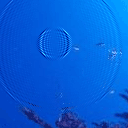
How to create water drops effect using HTML5 canvas
Today we continue JavaScript examples, and our article will about using javascript in modeling of water effects. This will emulation of water drops at images. We should click at image in desired place to see this effect. Sometimes we can create very interesting solutions using ordinary Javascript (of course for HTML) :)
Here are sample and downloadable package:
Live Demo
download in package
Ok, download the example files and lets start coding !
Step 1. HTML
As usual, we start with the HTML.
This is our main page code with all samples.
index.html
<!DOCTYPE html>
<html>
    <head>
        <meta charset=utf-8 />
        <title>Water drops effect</title>
        <link rel="stylesheet" href="css/main.css" type="text/css" />
        <script src="js/vector2d.js" type="text/javascript" charset="utf-8"></script>
        <script src="js/waterfall.js" type="text/javascript" charset="utf-8"></script>
    </head>
    <body>
        <div class="example">
            <h3><a href="#">Water drops effect</a></h3>

            <canvas id="water">HTML5 compliant browser required</canvas>
            <div id="switcher">
                <img onclick='watereff.changePicture(this.src);' src="data_images/underwater1.jpg" />
                <img onclick='watereff.changePicture(this.src);' src="data_images/underwater2.jpg" />
            </div>
            <div id="fps"></div>
        </div>
    </body>
</html>
Step 2. CSS
Here are used CSS styles.
css/main.css
body{background:#eee;margin:0;padding:0}
.example{background:#FFF;width:600px;border:1px #000 solid;margin:20px auto;padding:15px;-moz-border-radius: 3px;-webkit-border-radius: 3px}

#water {
    width:500px;
    height:400px;
    display: block;
    margin:0px auto;
    cursor:pointer;
}
#switcher {
    text-align:center;
    overflow:hidden;
    margin:15px;
}
#switcher img {
    width:160px;
    height:120px;
}
Step 3. JS
Here are our main control JS file.
js/main.js
function drop(x, y, damping, shading, refraction, ctx, screenWidth, screenHeight){
    this.x = x;
    this.y = y;
    this.shading = shading;
    this.refraction = refraction;
    this.bufferSize = this.x * this.y;
    this.damping = damping;
    this.background = ctx.getImageData(0, 0, screenWidth, screenHeight).data;
    this.imageData = ctx.getImageData(0, 0, screenWidth, screenHeight);

    this.buffer1 = [];
    this.buffer2 = [];
    for (var i = 0; i < this.bufferSize; i++){
        this.buffer1.push(0);
        this.buffer2.push(0);
    }

    this.update = function(){
        for (var i = this.x + 1, x = 1; i < this.bufferSize - this.x; i++, x++){
            if ((x < this.x)){
                this.buffer2[i] = ((this.buffer1[i - 1] + this.buffer1[i + 1] + this.buffer1[i - this.x] + this.buffer1[i + this.x]) / 2) - this.buffer2[i];
                this.buffer2[i] *= this.damping;
            } else x = 0;
        }

        var temp = this.buffer1;
        this.buffer1 = this.buffer2;
        this.buffer2 = temp;
    }

    this.draw = function(ctx){
        var imageDataArray = this.imageData.data;
        for (var i = this.x + 1, index = (this.x + 1) * 4; i < this.bufferSize - (1 + this.x); i++, index += 4){
            var xOffset = ~~(this.buffer1[i - 1] - this.buffer1[i + 1]);
            var yOffset = ~~(this.buffer1[i - this.x] - this.buffer1[i + this.x]);
            var shade = xOffset * this.shading;
            var texture = index + (xOffset * this.refraction  + yOffset * this.refraction * this.x) * 4;
            imageDataArray[index] = this.background[texture] + shade;
            imageDataArray[index + 1] = this.background[texture + 1] + shade;
            imageDataArray[index + 2] = 50 + this.background[texture + 2] + shade;
        }
        ctx.putImageData(this.imageData, 0, 0);
    }
}

var fps = 0;

var watereff = {
    // variables
    timeStep : 20,
    refractions : 2,
    shading : 3,
    damping : 0.99,
    screenWidth : 500,
    screenHeight : 400,
    pond : null,
    textureImg : null,
    interval : null,
    backgroundURL : 'data_images/underwater1.jpg',

    // initialization
    init : function() {
        var canvas = document.getElementById('water');
        if (canvas.getContext){

            // fps countrt
            fps = 0;
            setInterval(function() {
                document.getElementById('fps').innerHTML = fps / 2 + ' FPS';
                fps = 0;
            }, 2000);

            canvas.onmousedown = function(e) {
                var mouse = watereff.getMousePosition(e).sub(new vector2d(canvas.offsetLeft, canvas.offsetTop));
                watereff.pond.buffer1[mouse.y * watereff.pond.x + mouse.x ] += 200;
            }
            canvas.onmouseup = function(e) {
                canvas.onmousemove = null;
            }

            canvas.width  = this.screenWidth;
            canvas.height = this.screenHeight;
            this.textureImg = new Image(256, 256);
            this.textureImg.src = this.backgroundURL;
            canvas.getContext('2d').drawImage(this.textureImg, 0, 0);
            this.pond = new drop(
                this.screenWidth,
                this.screenHeight,
                this.damping,
                this.shading,
                this.refractions,
                canvas.getContext('2d'),
                this.screenWidth, this.screenHeight
            );
            if (this.interval != null){
                clearInterval(this.interval);
            }
            this.interval = setInterval(watereff.run, this.timeStep);
        }
    },

    // change image func
    changePicture : function(url){
        this.backgroundURL = url;
        this.init();
    },

    // get mouse position func
    getMousePosition : function(e){
        if (!e){
            var e = window.event;
        }
        if (e.pageX || e.pageY){
            return new vector2d(e.pageX, e.pageY);
        } else if (e.clientX || e.clientY){
            return new vector2d(e.clientX, e.clientY);
        }
    },

    // loop drawing
    run : function(){
        var ctx = document.getElementById('water').getContext('2d');
        watereff.pond.update();
        watereff.pond.draw(ctx);
        fps++;
    }
}

window.onload = function(){
    watereff.init();
}
As you can see- I using vector2d function here. This function available in ‘vector2d.js’ (in our package). Another code – pretty difficult – pure mathematics. But you are welcome to make experiments here.
Live Demo
download in package
Conclusion
Hope that you was happy to play with it. I hope that water drops looks fine :) If is you were wondering – do not forget to thank. I would be grateful for your interesting comments. Good luck!







it works somehow on firefox 4 but doesnt work on chrome 12 or it works EXTREMELY SLOW like … 1.5 fps :)
still good one :D
Hi,
Why? Speed can decreased to 2 fps (but in beginning only). I have avg speed about 30-40 fps :)
Very nice HTML5 effect! Thank you!
Hi
This is cool but I am no coder. How do I insert this into my website? Between the HEADS or just where I want it?
Thanks
Hi Luke,
You can put it everywhere (just don’t forget to include js/css)
This is cool, thanks
Is there any way to make “rain”.
Ie: say make a drop fall on random part of the image every second?
Thanks
Hi Ben,
Pay attention to function
canvas.onmousedown
Generally, you have to start own periodical function (with setInterval), and – execute the same functionality as in canvas.onmousedown (but you have to use random positions here)
Didnt work for me, What did I do wrong?
Hi Guy,
It didn’t work for you where exactly? At your own computer (localhost) or at our website too?
Hi!
Thanks for a beautiful effect! I have a question for you:
How can I make the wave proportionally higher because my canvas size is 909 to 1260 p.? … Also how can I do during a wave effect to operate up to 8 seconds after the click. Where are given these parameters?
Thanks in advance for your answer!
Nice water effect. How do you remove the blue tent that it places upon the canvas?
Which blue tent?
how to use this example in aspx web pages on images?
Thank you
Hi Student,
In the same way, with asp you just need to generate the html code of this page.
This is great code. Is there a way to trigger it with an input signal from the computer’s internal microphone? I’m working on an interactive sound page, and these ripples are a great example of sound dispersal.
Hi Matt,
I think that this is possible, however it will require you to learn some basics of how to work with the microphone (with JS).
How do I do something like this?? Or where could I find ready made copy and paste coding for something like this?
http://www.theripplesproject.org/pond
I have ZERO experience in coding. I just really want a peaceful pond that when you move your curser over it it ripples….
Hi Candi,
This is flash object, so you need to have some experience to work with flash to repeat this application.