
Creating nice clean HTML CSS website layout #3 – Dark theme
Today we have a little anniversary. Today`s article has a demo with the number 100 :) So I prepared a very interesting article – this will new nice template (in dark colors) for our readers. You can learn some new coding lessons and download result and use it at your own site (free of charge).
I going to start step-by-step tutorial for creating html-css layout.
Final Result

Live Demo
[sociallocker]
download result
[/sociallocker]
Get started
Ok, let`s start. Lets create new folder and few more folders inside (to keep proper structure):
- css – which will contain style files (style.css, menu.css and meteor-slides.css)
- images – which will contain all our images
- js – we will keep here all javascripts (jquery.js, jquery.cycle.all.js, script.js and slideshow.js)
Head section code
Now I am going to give you the usual HTML head area of index.html with the attached CSS/JS.
<!DOCTYPE HTML>
<html lang="en-US">
<head>
    <meta charset="UTF-8">
    <title>Dark Theme #3 | Script tutorials</title>
    <!-- Linking styles -->
    <link rel="stylesheet" href="css/style.css" type="text/css" media="screen">
    <link rel="stylesheet" href="css/menu.css" type="text/css" media="screen">
    <link rel="stylesheet" href="css/meteor-slides.css" type="text/css" media="screen">
    <!--[if IE 7]>
    <style>
    .promo_area {padding:0;}
    .promo_area .meteor-nav .prev a {top:236px;}
    .promo_area .meteor-nav .next a {top:236px;}
    </style>
    <![endif]-->
    <!-- Linking scripts -->
    <script src="js/jquery.js" type="text/javascript"></script>
    <script src="js/jquery.cycle.all.js" type="text/javascript"></script>
    <script src="js/script.js" type="text/javascript"></script>
    <script src="js/slideshow.js" type="text/javascript"></script>
</head>
Moving forward – Main layout (body)
Whole layout consist of 3 main section: header, center (content), and footer. It looks like:
<body>
    <div class="top"></div>
    <div class="mid"></div>
    <div class="bottom"></div>
    <!-- Defining the header section of the page -->
    <header>
        .........
    </header>
    <!-- Defining the main content section of the page -->
    <div class="content">
        .........
    </div>
    <footer><!-- Defining the footer section of the page -->
        .........
    </footer>
</body>
CSS for main layout (plus all base styles)
/* base styles */
* {margin:0; padding:0;}
img {border:0;}
.clear {clear:both; line-height:0; height:0; font-size:1px;}
.marg {width:916px; margin:0 auto;}
.mid {background:url(../images/bg.png) repeat top; width:100%; height:1108px; top:174px; left:0; position:absolute;}
.top {background:url(../images/top.jpg) repeat-x top; width:100%; height:175px; top:0; left:0; position:absolute;}
.bottom {background:url(../images/bottom.jpg) repeat-x top; width:100%; height:389px; top:1109px; position:absolute; left:0;}
body {font:13px Arial, Helvetica, sans-serif; color:#000000;}
a {text-decoration:none; color:#fff; outline:none; cursor:pointer;}
a:hover {text-decoration:underline;}
These CSS styles defines the basic element styling, backgrounds to different sections, positions, fonts etc.
Header section

Our header will contain logo, and navigation menu at right side. Here are HTML for that section:
<!-- Defining the header section of the page -->
<header>
<div class="marg">
    <div class="header">
        <div class="logo">
            <a href="#" title="Dark Theme #3">Dark Theme #3</a>
        </div>
        <div class="nav">
            <!-- Defining the navigation menu -->
            <ul>
                <li class="current"><a href="https://www.script-tutorials.com/"><span class="l"></span><span class="m">Home</span><span class="r"></span></a></li>
                <li><a href="https://www.script-tutorials.com/"><span class="l"></span><span class="m">Tutorials</span><span class="r"></span></a>
                    <ul class="sub-menu">
                        <li><a href="https://www.script-tutorials.com/category/html-css/">HTML / CSS</a></li>
                        <li><a href="https://www.script-tutorials.com/category/jquery/">JS / jQuery</a></li>
                        <li><a href="https://www.script-tutorials.com/category/php/">PHP</a></li>
                        <li><a href="https://www.script-tutorials.com/category/mysql/">MySQL</a></li>
                        <li><a href="https://www.script-tutorials.com/category/xslt/">XSLT</a></li>
                        <li><a href="https://www.script-tutorials.com/category/ajax/">Ajax</a></li>
                    </ul>
                </li>
                <li><a href="https://www.script-tutorials.com/tag/html5/"><span class="l"></span><span class="m">Tags</span><span class="r"></span></a>
                    <ul class="sub-menu">
                        <li><a href="https://www.script-tutorials.com/tag/animation/">animation</a></li>
                        <li><a href="https://www.script-tutorials.com/tag/html5/">html5</a></li>
                        <li><a href="https://www.script-tutorials.com/tag/captcha/">captcha</a></li>
                        <li><a href="https://www.script-tutorials.com/tag/gallery/">gallery</a></li>
                        <li><a href="https://www.script-tutorials.com/tag/animation/">animation</a></li>
                    </ul>
                </li>
                <li><a href="https://www.script-tutorials.com/creating-nice-clean-html-css-website-layout-3-dark-theme/"><span class="l"></span><span class="m">Back</span><span class="r"></span></a></li>
            </ul>
            <div class="clear"></div>
        </div>
    </div>
</div>
</header>
CSS for Header section
/* header area */
.header {position:relative; width:916px; height:174px; z-index:1000;}
.h_user {position:absolute; right:225px; top:16px; color:#292929;}
.h_user a, .h_user span, .h_user img {vertical-align:middle;}
.h_user span {padding:0 2px;}
.h_user a {color:#717171; font-size:10px; text-transform:uppercase;}
.h_user .h_tw {padding:0 2px 0 18px;}
.h_title {position:absolute; left:33px; top:23px; font-size:10px; color:#484848; text-transform:uppercase;}
.logo {position:absolute; width:231px; height:50px; left:35px; top:83px;}
.logo a {background:url(../images/logo.png) no-repeat; width:231px; height:50px; display:block; text-indent:-9999px;}
CSS for Navigation menu
css/menu.css
.nav {position:absolute; right:0; top:86px;}
.nav ul {list-style:none; position:relative;}
.nav ul li {display:block; float:left; position:relative; z-index:1000;}
.nav ul li a {display:block; font-family:Verdana, sans-serif; color:#c5c5c5; font-size:24px; font-weight:bold; height:49px; line-height:49px; position:relative; padding:0 9px; z-index:2;}
.nav ul li a span {display:block; height:49px;}
.nav ul li a .m {padding:0 12px;}
.nav ul li a .l {position:absolute; width:9px; left:0; top:0;}
.nav ul li a .r {position:absolute; width:9px; right:0; top:0;}
.nav ul li a:hover {text-decoration:none;}
.nav ul li a:hover .m, .nav ul li.hover a .m {background:url(../images/pag_bg.png) repeat-x top;color:#fff;}
.nav ul li a:hover .l, .nav ul li.hover a .l {background:url(../images/pag_l.png) no-repeat left;}
.nav ul li a:hover .r, .nav ul li.hover a .r {background:url(../images/pag_r.png) no-repeat right;}
.nav ul .current .m {background:url(../images/pag_bg.png) repeat-x top;}
.nav ul .current .l {background:url(../images/pag_l.png) no-repeat left;}
.nav ul .current .r {background:url(../images/pag_r.png) no-repeat right;}
.nav ul li ul {display:none; width:207px; position:absolute; z-index:1; top:49px; left:0;}
.nav ul li ul li {}
.nav ul li ul li .l, .nav ul li ul li .r {display:none;}
.nav ul li ul li .m {background:none; padding:0;}
.nav ul li ul li a {width:171px; padding:0 18px; background:#171717; font-size:18px;}
.nav ul li ul li ul {top:0; left:207px;}
.nav ul .hover ul {display:block;}
.nav ul .hover ul li ul {display:none;}
.nav ul .hover ul .hover ul {display:block;}
.nav ul .hover ul li a {background-color:#000;}
.nav ul .hover ul .hover a {background-color:#444;}
Pretty easy styles. Next section is central content section. As you see – I have promo section (slider) inside our main content area as first element
Promo section

In this area we will put few rotating images (slider promo) with prev-next buttons. I selected Meteor Slides for our template (this is jQuery plugin). Here are its HTML code:
<!-- Defining the promo(slider) section of the page -->
<div class="promo_area">
    <div class="meteor-slides navprevnext">
        <ul class="meteor-nav">
            <li class="prev"><a href="#">Previous</a></li>
            <li class="next"><a href="#">Next</a></li>
        </ul>
        <div class="promo_wrap">
            <div class="slides">
                <div class="slide">
                    <a href="#" title="promo1">
                    <img src="images/promo/p1.jpg" alt="promo1" title="promo1" /></a>
                    <div class="title"><p><a href="#" title="promo1">promo 1 text</a></p></div>
                </div>
                <div class="slide">
                    <a href="#" title="promo2">
                    <img src="images/promo/p2.jpg" alt="promo2" title="promo2" /></a>
                    <div class="title"><p><a href="#" title="promo2">promo 2 text</a></p></div>
                </div>
                <div class="slide">
                    <a href="#" title="promo3">
                    <img src="images/promo/p3.jpg" alt="promo3" title="promo3" /></a>
                    <div class="title"><p><a href="#" title="promo3">promo 3 text</a></p></div>
                </div>
            </div>
        </div>
    </div>
</div>
CSS for Promo section
/* promo area */
.promo_area {width:1000px; margin:0 auto; padding:0 0 0 0;}
.promo_area .meteor-slides {z-index:inherit !important;}
.promo_area .meteor-slides .slides {width:860px !important; height:460px !important;}
.promo_area .meteor-slides .slide {z-index:inherit !important; width:860px !important; height:460px !important;}
.promo_wrap {background:url(../images/slider_bg.png) no-repeat; width:930px; height:489px; margin:0 auto; padding:30px 0 0 70px;}
.promo_area .meteor-nav {display:block !important;}
.promo_area .meteor-nav li {display:block !important;}
.promo_area .meteor-nav .prev a {background:url(../images/sl_l.png) no-repeat left top; width:55px; position:absolute; height:96px !important; top:202px; left:1px !important; }
.promo_area .meteor-nav .prev a:hover {background:url(../images/sl_l.png) no-repeat left bottom;}
.promo_area .meteor-nav .next a {background:url(../images/sl_r.png) no-repeat right top; width:66px; position:absolute; height:102px !important; top:202px; right:-10px !important;}
.promo_area .meteor-nav .next a:hover {background:url(../images/sl_r.png) no-repeat right bottom;}
.promo_area .title {position:absolute; bottom:0; z-index:100; background:url(../images/sl_bg.png) repeat; height:60px; width:859px;}
.promo_area .title p {line-height:60px; padding:0 0 0 20px; font-size:18px; color:#fff;}
.promo_area .title p a {color:#fff;}
.promo_area .title p a:hover {color:#ff7e20; text-decoration:none;}
Main content section
After our promo – we have main content area. I separated this section into 3 columns. All 3 columns have similar, but still different missions. Forst column will display some info about you, second – recent popular posts, third – last X posts. You can feel free to have here anything own. I will provide you with HTML code of single element per each column.
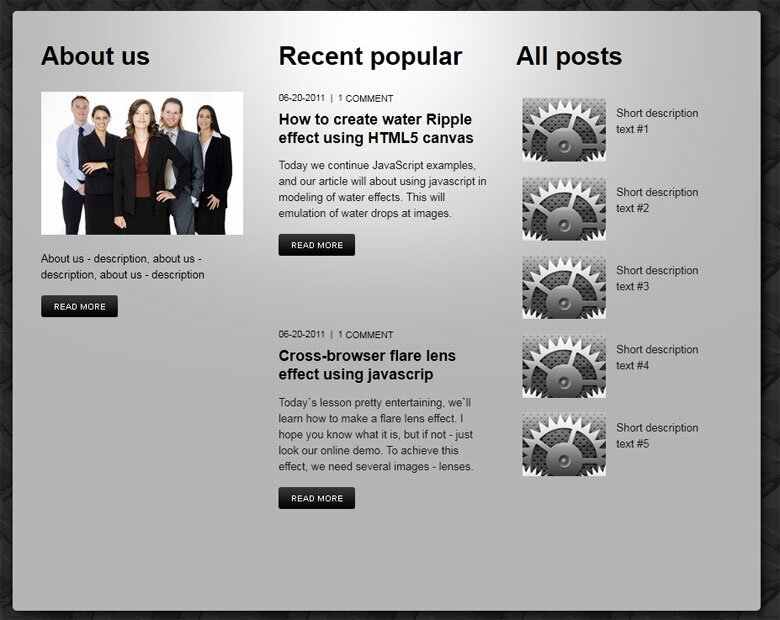
<!-- Rest content of main area -->
<div class="marg main">
    <div class="con">
        <div class="con_t"></div>
        <div class="con_bg">
            <div class="con_wrap">
                <!-- column #1 -->
                <div class="block">
                    <div class="btitle">About us</div>
                    <div>
                        <img src="images/about_us.jpg" alt="About us" title="About us" />
                    </div>
                    <div class="bcon">
                        <div>About us - description, about us - description, about us - description
                            <a href="#" class="continue">continue</a>
                        </div>
                    </div>
                </div>
                <!-- column #2 -->
                <div class="block">
                    <div class="btitle">Recent popular</div>
                    <div class="post">
                        <div class="head">
                            <span>06-20-2011</span> <span class="s">|</span> <span> <a href="#"><b>1</b> <span>comment</span></a></span>
                        </div>
                        <h3 class="title">
                            <a href="https://www.script-tutorials.com/how-to-create-water-drops-effect-using-html5-canvas/">How to create water Ripple effect using HTML5 canvas</a>
                        </h3>
                        <div class="con">
                            <p>Today we continue JavaScript examples, and our article will about using javascript in modeling of water effects. This will emulation of water drops at images. <a href="https://www.script-tutorials.com/how-to-create-water-drops-effect-using-html5-canvas/" class="continue">Continue</a></p>
                        </div>
                    </div>
                    ..............
                </div>
                <!-- column #3 -->
                <div class="block">
                    <div class="btitle">All posts</div>
                    <ul class="snews">
                        <li>
                            <a href="#">
                                <div class="img">
                                    <img src="images/tutorial.png" alt="" title="" />
                                </div>
                                <div class="con">
                                    <p>Short description text #1</p>
                                </div>
                            </a>
                            <br class="clear" />
                        </li>
                        ..............
                    </ul>
                </div>
                <div class="clear"></div>
            </div>
        </div>
        <div class="con_b"></div>
    </div>
</div>
CSS for Main content section
/* main area */
.main {padding:30px 0 0 0;}
.con {position:relative; padding:5px 0 18px 0;}
.con_bg {background:url(../images/con_bg.png) repeat-y; min-height:470px;}
.con_t {background:url(../images/con_t.png) no-repeat top; position:absolute; height:458px; width:100%; top:0; left:0;}
.con_b {background:url(../images/con_b.png) no-repeat bottom; position:absolute; height:18px; width:100%; bottom:0; left:0;}
.con_wrap {z-index:1;padding:30px;}
/* blocks */
.block {float:left; width:29%; padding:0 2%; position:relative;}
.btitle {font-size:30px; color:#000; font-family:Arial, Helvetica, sans-serif; font-weight:bold; padding:0 0 25px 0;}
.bcon {padding:15px 0 0 0; line-height:19px;}
.post {padding:0 0 38px 0;}
.post .head {font-size:11px; color:#000; text-transform:uppercase; font-family:Arial, Helvetica, sans-serif; font-weight:normal; padding:0 0 6px 0;}
.post .head a {color:#000; text-decoration:none;}
.post .head b {font-weight:normal;}
.post .head span {vertical-align:middle;}
.post .head .s {padding:0 3px;}
.post .title {font-size:18px; font-family:Arial, Helvetica, sans-serif; padding:0 0 8px 0;}
.post .title a {color:#000;}
.post .con p {line-height:19px; color:#1c1c1c; padding:0 0 30px 0;}
.snews {overflow:hidden;}
.snews li {display:block; padding:7px;}
.snews li:hover {background-color:#888;}
.snews .img {display:block; float:left; width:100px;}
.snews a p {color:#1c1c1c;}
.snews :hover a p {color:#fff;}
.snews .con {float:left; display:block; width:115px; padding:9px 0 0 12px; line-height:19px;}
.continue {display:block; background:url(../images/more_link.png) no-repeat top left; width:91px; height:26px; text-indent:-9999px; margin:15px 0 0 0;}
.continue:hover {background:url(../images/more_link.png) no-repeat bottom left;}
Footer section
Here are our footer area
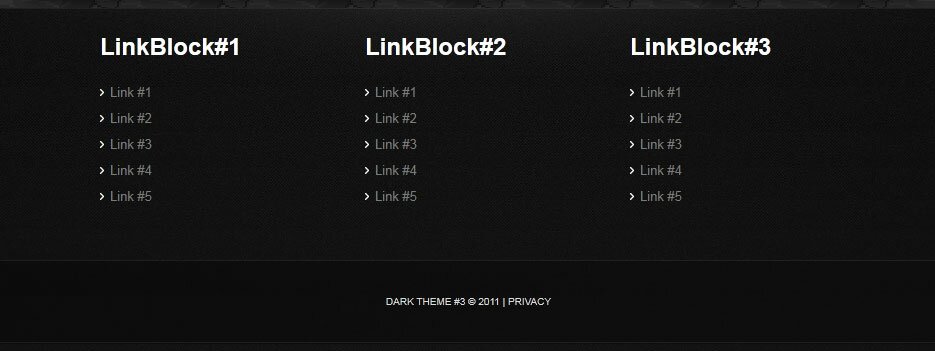
<footer><!-- Defining the footer section of the page -->
<div class="footer">
<div class="footer_wrap">
<div class="wcont">
<h3 class="title">LinkBlock#1</h3>
<ul>
<li><a href="#" title="link 1">Link #1</a></li>
<li><a href="#" title="link 2">Link #2</a></li>
<li><a href="#" title="link 3">Link #3</a></li>
<li><a href="#" title="link 4">Link #4</a></li>
<li><a href="#" title="link 5">Link #5</a></li>
</ul>
</div>
<div class="wcont">
<h3 class="title">LinkBlock#2</h3>
<ul>
<li><a href="#" title="link 1">Link #1</a></li>
<li><a href="#" title="link 2">Link #2</a></li>
<li><a href="#" title="link 3">Link #3</a></li>
<li><a href="#" title="link 4">Link #4</a></li>
<li><a href="#" title="link 5">Link #5</a></li>
</ul>
</div>
<div class="wcont">
<h3 class="title">LinkBlock#3</h3>
<ul>
<li><a href="#" title="link 1">Link #1</a></li>
<li><a href="#" title="link 2">Link #2</a></li>
<li><a href="#" title="link 3">Link #3</a></li>
<li><a href="#" title="link 4">Link #4</a></li>
<li><a href="#" title="link 5">Link #5</a></li>
</ul>
</div>
<div class="clear"></div>
</div>
</div>
<div class="foot">
<div class="foot_wrap">Dark Theme #3 © 2011 | <a href="#">Privacy</a></div>
</div>
</footer>
CSS for footer section
/* footer section */
.footer {padding:25px 0 0 33px;}
.footer_wrap {width:800px; margin:0 auto; position:relative; padding:0 0 50px 0;}
.footer .wcont {float:left; width:235px; padding:0 15px; color:#7c7c7c;}
.footer .wcont .title {font-family:Arial, Helvetica, sans-serif; color:#fff; font-size:24px; padding:0 0 18px 0; display:block;}
.footer .wcont .title a {color:#fff;}
.footer .wcont .title a:hover {text-decoration:none;}
.footer .wcont a {color:#7c7c7c;}
.footer .wcont ul {list-style:none;}
.footer .wcont ul li {padding:5px 0 5px 10px; background:url(../images/cat_li.png) no-repeat left;}
.footer .wcont ul li a:hover {color:#ff7e20; text-decoration:none;}
.footer .wcont .twitter li {background:none; padding:5px 0;}
.footer .wcont .twitter li a {color:#fff;}
/* foot section */
.foot {font-size:10px; color:#ddd; text-transform:uppercase; background:url(../images/foot_bg.jpg) repeat; position:relative;}
.foot .foot_wrap {margin:0 auto; text-align:center; padding:35px 0;}
.foot a {color:#ddd;}
JS for our template
Here are all necessary custom JS scripts
js/script.js
$(document).ready(function($){
    var conh = $('div.content').height();
    $(document).ready(function(){
        $('div.mid').css('height',conh);
        $('div.bottom').css('top',conh+174);
    });
    $('div.nav ul li').hover(function(){
        $(this).addClass('hover')},
        function(){
            $(this).removeClass('hover');
    });
});
var meteorslidessettings = {
    meteorslideshowspeed: "2000",
    meteorslideshowduration: "0",
    meteorslideshowheight: "519",
    meteorslideshowwidth: "1000",
    meteorslideshowtransition: "fade"
};
All other JS files (jquery.js, jquery.cycle.all.js and slideshow.js) available in package
Live Demo
Conclusion
Congrats, our new template ‘Dark theme’ is complete! You can use this as is, but please leave the back link intact. Don`t forget to say thanks :)





Awesome.Liked it.Let me try it and I will get back to you.
Hey Andrex, thanks for this excellent theme & great coding!
You ask to leave the back link intact but is it also ok for you that I mention you in the credits of a future site(s)?
I hope you understand that for aesthetic reasons it’s not always appropriate to leave this “Back”-link in a design.
Thank you for your feedback & keep up the greate work!
Best regards,
Tom Cockaert.
Hello Tom,
But where exactly – ‘in credits’?
Can you show me an example of this page?
Hello,
I love the tutorial. Very clear and easy to follow.
I used your sample to try to make a website but only altered the graphics and wording.
It works fine when I load the html file from my hard disk and open it in IE9. But when uploading the file to a website and trying to open it in IE9, it explodes and displays loads of Chinese (I beleive) characters. What is going on with that?
Any help would be very gratefully received!
Hello Nick,
Into Chinese? :-)
so, first check your FTP file transfer mode (it should be binary in order to prevent corrupting of sources during upload).
Then, check your browser. Make sure that is uses UTF8 by default. And finally – recheck if your page contains
<html lang="en-US">
and
<meta charset="UTF-8">
in the beginning.
Hello I posted a problem the other day. I should have just contacted you direct it seems.
I was trying to use the Dark Theme to create a new website. The only changes to your original layout I made was to create new graphics and change the headings, links and wording.
I tested the .html page locally from my hard disk and it worked perfectly using IE9.
I then uploaded all the correct files to my web server and tried to open the html file live on the internet. I carefully checked I uploaded all the files in their correct folders, etc.
However, when the page loaded, it exploded and display loads of Chinese characters (I believe). The page formatting was detroyed and whilst the grpahic files I creted displayed, they were all over the place.
I was hoping to use your layout as a template and give due credit. However, I don’t know why it is not displaying correctly.
A little help would be greatly appreicated!
Thanks,
Nick Williamson
thanks so much :)