
Single page CSS3 tutorial – Gray theme. After long delay, I decided to make new nice article – this will new nice template (in gray colors) for our readers. You can learn some new coding lessons and download our result and use it at your own site (its free as usual). I going to start step-by-step tutorial for creating html-css layout.
Final Result
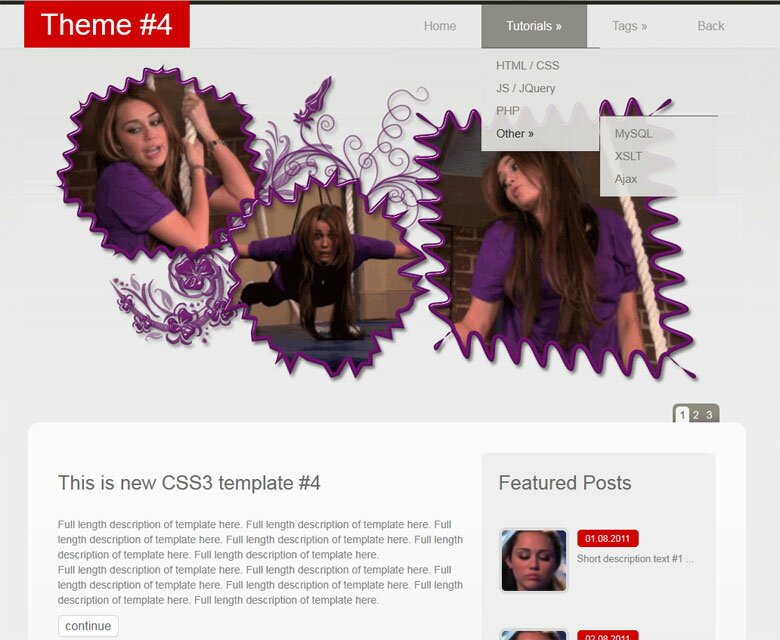
Live Demo
[sociallocker]
download result
[/sociallocker]
Get started
Ok, let`s start. Lets create new folder and few more folders inside (to keep proper structure):
- css – which will contain style files (menu.css and style.css)
- images – which will contain all our images
- js – we will keep here all javascripts (jquery.js, jquery.nivo.slider.js, script.js, superfish.js and supersubs.js)
Head section code
Now I am going to give you the usual HTML head area of index.html with the attached CSS/JS.
<!DOCTYPE HTML>
<html lang="en-US">
<head>
    <meta charset="UTF-8">
    <title>Gray Theme #4 | Script tutorials</title>
    <!-- Linking styles -->
    <link rel="stylesheet" href="css/style.css" type="text/css" media="screen">
    <link rel="stylesheet" href="css/menu.css" type="text/css" media="screen">
    <!-- Linking scripts -->
    <!--[if lt IE 9]>
        <script src="http://html5shim.googlecode.com/svn/trunk/html5.js"></script>
    <![endif]-->
    <script src="js/jquery.js" type="text/javascript"></script>
    <script src="js/superfish.js" type="text/javascript"></script>
    <script src="js/supersubs.js" type="text/javascript"></script>
    <script src="js/script.js" type="text/javascript"></script>
    <script src="js/jquery.nivo.slider.js" type="text/javascript"></script>
</head>
<body>
Moving forward – Main layout (body)
Whole layout consist of 4 main section: header, section (promo area), primary_content (just center content) and footer. It looks like:
<body>
    <!-- Defining the header section of the page -->
    <header id="header">
        .........
    </header>
    <!-- Defining the promo(slider) section of the page -->
    <section id="slider-wrapper">
        .........
    </section>
    <!-- Defining the main content section of the page -->
    <div class="primary_content container">
        .........
    </div>
    <footer><!-- Defining the footer section of the page -->
    .........
    </footer>
</body>
CSS for main layout (plus all base styles)
/* base styles */
* {
margin:0;
padding:0;
}
img {
border:0;
}
a {
color:#d00000;
outline:none;
text-decoration:underline;
}
a:hover,a:active {
outline:0;
text-decoration:none;
}
html,body {
min-width:960px;
}
body {
background-color:#ededed;
background-image:url(../images/tail-top.jpg);
background-position:center top;
background-repeat:repeat-x;
color:#828387;
font:100%/1.125em Arial, Helvetica, sans-serif;
font-size:13px;
font-style:normal;
position:relative;
}
ul li a {
color:#828387;
text-decoration:none;
}
ul li a:hover {
color:#E90000;
}
.container {
display:block;
margin-left:auto;
margin-right:auto;
position:relative;
width:960px;
}
These CSS styles defines the basic element styling, backgrounds to different sections, positions, fonts etc.
Header section

Our header will contain logo at left, and navigation menu at right side. Here are HTML for that section:
<!-- Defining the header section of the page -->
<header id="header">
    <div class="container">
        <div class="logo">
            <a href="#" title="Gray Theme #4">Theme #4</a>
        </div>
        <nav>
            <!-- Defining the navigation menu -->
            <ul class="topnav">
                <li class="current"><a href="https://www.script-tutorials.com/">Home</a></li>
                <li><a href="https://www.script-tutorials.com/">Tutorials</a>
                    <ul class="sub-menu">
                        <li><a href="https://www.script-tutorials.com/category/html-css/">HTML / CSS</a></li>
                        <li><a href="https://www.script-tutorials.com/category/jquery/">JS / jQuery</a></li>
                        <li><a href="https://www.script-tutorials.com/category/php/">PHP</a></li>
                        <li><a href="https://www.script-tutorials.com/category/ajax/">Other</a>
                            <ul class="sub-menu">
                                <li><a href="https://www.script-tutorials.com/category/mysql/">MySQL</a></li>
                                <li><a href="https://www.script-tutorials.com/category/xslt/">XSLT</a></li>
                                <li><a href="https://www.script-tutorials.com/category/ajax/">Ajax</a></li>
                            </ul>
                        </li>
                    </ul>
                </li>
                <li><a href="https://www.script-tutorials.com/tag/html5/">Tags</a>
                    <ul class="sub-menu">
                        <li><a href="https://www.script-tutorials.com/tag/animation/">animation</a></li>
                        <li><a href="https://www.script-tutorials.com/tag/html5/">html5</a></li>
                        <li><a href="https://www.script-tutorials.com/tag/captcha/">captcha</a></li>
                        <li><a href="https://www.script-tutorials.com/tag/gallery/">gallery</a></li>
                        <li><a href="https://www.script-tutorials.com/tag/animation/">animation</a></li>
                    </ul>
                </li>
                <li><a href="https://www.script-tutorials.com/creating-new-layout-4-gray-theme/">Back</a></li>
            </ul>
        </nav>
    </div>
</header>
CSS for Header section
/* header area */
#header {
background:none repeat scroll 0 0 transparent;
display:block;
height:62px;
position:relative;
z-index:99;
}
.logo {
left:0;
position:absolute;
top:0;
}
.logo a,.logo a {
background-color:#D00000;
color:#FFF;
display:block;
font-size:3em;
height:62px;
line-height:62px;
padding:0 22px;
text-decoration:none;
}
.logo a:hover {
background:#28261d;
}
nav {
position:relative;
z-index:2;
}
CSS for navigation menu
css/menu.css
.topnav,.topnav * {
list-style:none;
margin:0;
padding:0;
}
.topnav {
float:right;
line-height:1.0;
margin-top:5px;
max-width:860px;
}
.topnav ul {
position:absolute;
top:-999em;
width:10em;
}
.topnav ul li {
width:100%;
}
.topnav li:hover {
visibility:inherit;
}
.topnav li {
background:none;
float:left;
margin:0;
padding:0;
position:relative;
}
.topnav a {
color:#9c9b93;
display:block;
position:relative;
text-decoration:none;
text-transform:capitalize;
}
.topnav li:hover ul,.topnav li.sfHover ul {
left:0;
top:57px;
z-index:99;
}
ul.topnav li:hover li ul,ul.topnav li.sfHover li ul,ul.topnav li li:hover li ul,ul.topnav li li.sfHover li ul {
top:-999em;
}
ul.topnav li li:hover ul,ul.topnav li li.sfHover ul {
left:10em;
margin-left:1px;
top:-9px;
}
ul.topnav li li li:hover ul,ul.topnav li li li.sfHover ul {
left:10em;
top:0;
}
.topnav > li > a {
font-size:16px;
height:57px;
line-height:57px;
padding:0 33px;
}
.topnav > li > a:hover,.topnav > li.sfHover > a {
background:#8f8d86;
color:#FFF;
}
.topnav > li.current-menu-item > a {
background:#605e57;
color:#FFF;
}
.topnav li ul {
background:url(../images/sub-menu-tail.png);
border-top:1px solid #605e57;
padding:8px 0;
}
.topnav li li a {
color:#7d7a71;
font-size:15px;
line-height:30px;
padding-left:20px;
}
.topnav li li a:hover,.topnav li li.sfHover > a {
color:#28261d;
}
.topnav li:hover,.topnav li.sfHover,.topnav a:focus,.topnav a:hover,.topnav a:active,.topnav > li.current-menu-item > a {
outline:0;
}
.topnav a.sf-with-ul {
min-width:1px;
}
Hope that this was easy. Next section will promo section (jQuery Nivo Slider)
Promo section

In this area we will put few rotating images (slider promo) with numbered navigation buttons. I selected Nivo Slider for our template (this is jQuery plugin). Here are its HTML code:
<!-- Defining the promo(slider) section of the page -->
<section id="slider-wrapper">
    <div class="container">
        <div id="slider" class="nivoSlider">
            <img src="images/promo/p1.png" alt="" title="#sliderCaption1" />
            <img src="images/promo/p2.png" alt="" title="#sliderCaption2" />
            <img src="images/promo/p3.png" alt="" title="#sliderCaption3" />
        </div>
        <div id="sliderCaption1" class="nivo-html-caption"></div>
        <div id="sliderCaption2" class="nivo-html-caption"></div>
        <div id="sliderCaption3" class="nivo-html-caption"></div>
    </div>
</section>
CSS for Promo section
/* promo area */
#slider-wrapper {
height:496px;
overflow:hidden;
position:relative;
}
#slider {
background:url(../images/ajax-loader.gif) no-repeat 50% 50%;
height:496px;
position:relative;
width:100%;
}
#slider img {
display:none;
left:0;
position:absolute;
top:0;
}
#slider a {
border:0;
display:block;
}
.nivoSlider {
position:relative;
}
.nivoSlider img {
left:0;
position:absolute;
top:0;
}
.nivoSlider a.nivo-imageLink {
border:0;
display:none;
height:100%;
left:0;
margin:0;
padding:0;
position:absolute;
top:0;
width:100%;
z-index:60;
}
.nivo-slice {
display:block;
height:100%;
position:absolute;
z-index:50;
}
.nivo-box {
display:block;
position:absolute;
z-index:5;
}
.nivo-caption {
bottom:0;
color:#fff;
left:0;
position:absolute;
width:100%;
z-index:89;
}
.nivo-caption .nivo-caption-inner {
margin:0;
padding:0;
}
.nivo-caption a {
display:inline !important;
}
.nivo-html-caption {
display:none;
}
.nivo-directionNav a {
background:url(images/direction_nav.png) no-repeat 0 0;
border:0;
cursor:pointer;
display:block;
height:35px;
position:absolute;
text-indent:-9999px;
top:50%;
width:36px;
z-index:99;
}
.nivo-prevNav {
left:0;
}
.nivo-nextNav {
right:0;
}
.nivo-controlNav {
-moz-border-radius:7px;
-webkit-border-radius:7px;
background:url(../images/controlNavBg.gif) repeat-x left top;
border-radius:7px;
bottom:-7px;
height:32px;
padding:0 4px;
position:absolute;
right:40px;
text-align:center;
z-index:99;
}
.nivo-controlNav a {
-moz-border-radius:5px;
-webkit-border-radius:5px;
border-radius:5px;
color:#FFF;
cursor:pointer;
display:inline-block !important;
font-size:14px;
height:27px;
line-height:22px;
margin-top:4px;
padding:0 5px;
position:relative;
text-decoration:none;
z-index:99;
}
.nivo-controlNav a.active,.nivo-controlNav a.active:hover {
background-color:#f3f3f1;
color:#636053;
}
.nivo-controlNav a:hover {
background-color:#5b5849;
}
a.nivo-nextNav {
background-position:-36px 0;
right:0;
}
a.nivo-nextNav:hover {
background-position:-36px -35px;
}
a.nivo-prevNav {
background-position:0 0;
left:0;
}
a.nivo-prevNav:hover {
background-position:0 -35px;
}
#slider .nivo-controlNav img {
display:inline;
height:auto;
margin-right:10px;
position:relative;
width:120px;
}
Main content section
After our promo – we have main content area. I separated this section into 2 columns. First column can contain full length news, second – some featured posts (with short titles). Of course – you can customize here anything. I will provide you with HTML code of single element per each column.
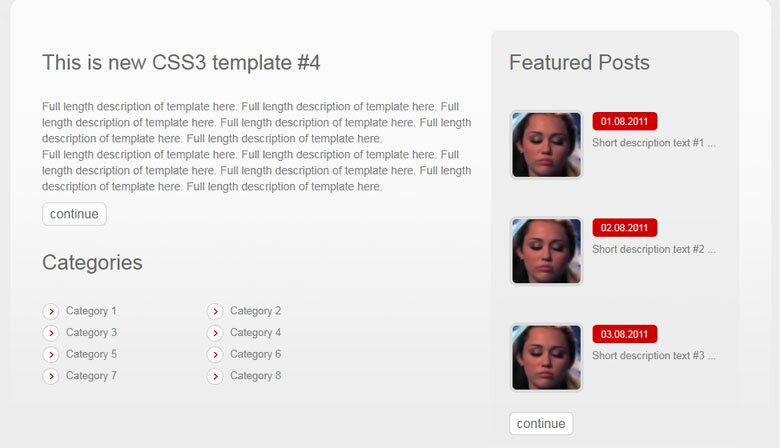
<!-- Defining the main content section of the page -->
<div class="primary_content container">
    <!-- column #1 -->
    <div id="column1" class="column">
        <div class="block">
            <h3>This is new CSS3 template #4</h3>
            <div class="bcon">
                <p>Full length description of template here. Full length description of template here. Full length description of template here. Full length description of template here. Full length description of template here. Full length description of template here.</p>
                <p>Full length description of template here. Full length description of template here. Full length description of template here. Full length description of template here. Full length description of template here. Full length description of template here.</p>
            </div>
            <a href="#" class="button"><span><span>continue</span></span></a>
        </div>
        <div class="block">
            <h3>Categories</h3>
            <div class="bcon">
                <ul>
                    <li><a href="#">Category 1</a></li>
                    <li><a href="#">Category 2</a></li>
                    <li><a href="#">Category 3</a></li>
                    <li><a href="#">Category 4</a></li>
                    <li><a href="#">Category 5</a></li>
                    <li><a href="#">Category 6</a></li>
                    <li><a href="#">Category 7</a></li>
                    <li><a href="#">Category 8</a></li>
                </ul>
            </div>
        </div>
    </div>
    <!-- column #2 -->
    <div id="column2" class="column">
        <div class="block2">
            <div class="top"></div>
            <div class="bg">
                <h3>Featured Posts</h3>
                <div class="bcon">
                    <ul>
                    <li>
                        <a href="" class="thumb"><img src="images/tutorial.png" alt="post 1" title="post 1"><span class="wrap"></span></a>
                        <a href="" class="date"><span><span>01.08.2011</span></span></a>
                        <p>Short description text #1 ... </p>
                    </li>
                    <li>
                        <a href="" class="thumb"><img src="images/tutorial.png" alt="post 2" title="post 2"><span class="wrap"></span></a>
                        <a href="" class="date"><span><span>02.08.2011</span></span></a>
                        <p>Short description text #2 ... </p>
                    </li>
                    <li>
                        <a href="" class="thumb"><img src="images/tutorial.png" alt="post 3" title="post 3"><span class="wrap"></span></a>
                        <a href="" class="date"><span><span>03.08.2011</span></span></a>
                        <p>Short description text #3 ... </p>
                    </li>
                    </ul>
                </div>
                <div>
                <a href="#" class="button"><span><span>continue</span></span></a>
                </div>
            </div>
            <div class="bot"></div>
        </div>
    </div>
</div>
CSS for Main content section
/* main area */
.primary_content {
background:url(../images/contentBoxBg.png) no-repeat scroll center top transparent;
overflow:hidden;
padding-bottom:45px;
}
.primary_content .column {
display:inline;
float:left;
margin-left:5px;
margin-right:5px;
padding-top:40px;
position:relative;
}
#column1 {
padding-left:40px;
padding-top:64px;
width:550px;
}
#column2 {
padding-right:40px;
width:310px;
}
.button {
background:url(../images/button-left.png) no-repeat left top;
color:#696969;
display:inline-block;
font-size:16px;
padding-left:6px;
text-decoration:none;
}
.button:hover {
background-position:left -29px;
color:#FFF;
}
.button span {
background:url(../images/button-right.png) no-repeat right top;
display:block;
padding-right:6px;
}
.button:hover span {
background-position:right -29px;
}
.button span span {
background:url(../images/button-tail.gif) repeat-x left top;
height:29px;
line-height:29px;
padding:0 4px;
}
.button:hover span span {
background-position:left -29px;
}
/* blocks */
.block,.block2 {
margin-bottom:30px;
}
.block .bcon,.block2 .bcon {
margin-bottom:10px;
}
.block h3,.block2 h3 {
color:#696969;
font-size:2em;
font-weight:400;
line-height:1.2em;
margin:0 0 30px;
}
.block .bcon p {
font-size:1.077em;
line-height:1.429em;
}
.block .bcon ul {
margin:0;
padding:0;
}
.block .bcon ul li {
background:url(../images/marker.png) no-repeat scroll left top transparent;
float:left;
height:auto !important;
list-style-type:none;
margin-top:6px;
min-height:18px;
padding:2px 0 1px 30px;
width:175px;
}
.block2 .top {
background:url(../images/box-top.png) no-repeat scroll left top transparent;
font-size:0;
height:10px;
line-height:0;
overflow:hidden;
}
.block2 .bg {
background:url(../images/sidebar-tail.png) repeat scroll 0 0 transparent;
overflow:hidden;
width:100%;
}
.block2 .bg > h3,.block2 .bg > div,.block2 .bg > .button {
padding:14px 23px 0;
}
.thumb {
float:left;
height:88px;
margin:0 15px 10px 0;
position:relative;
}
.thumb img {
float:left;
height:80px;
margin:4px 0 0 4px;
width:85px;
}
a.thumb {
cursor:pointer;
}
a.thumb:hover .wrap {
background-position:left -88px;
border-color:#d00000;
}
.thumb .wrap {
background:url(../images/img-wrap-small.png) no-repeat left top;
float:left;
height:88px;
left:0;
position:absolute;
top:0;
width:93px;
}
.block2 ul li {
background:none;
list-style-type:none;
margin:45px 0 0;
overflow:hidden;
padding:0;
position:relative;
vertical-align:top;
width:100%;
}
.block2 ul li:first-child {
margin-top:0;
}
.block2 ul li .thumb {
margin-bottom:0;
}
.block2 ul li .date {
background:url(../images/postDate-left.png) no-repeat left top;
color:#FFF;
cursor:pointer;
display:inline-block;
font-size:12px;
margin:3px 0 8px;
padding-left:5px;
}
.block2 ul li .date:hover {
background-position:left -23px;
}
.block2 ul li .date span {
background:url(../images/postDate-right.png) no-repeat right top;
display:block;
padding-right:5px;
}
.block2 ul li .date:hover span {
background-position:right -23px;
}
.block2 ul li .date span span {
background:#d00000;
height:23px;
line-height:23px;
padding:0 6px;
}
.block2 ul li .date:hover span span {
background:#696969;
}
.block2 ul li p {
margin:0;
}
.block2 .bot {
background:url(../images/box-bot.png) no-repeat scroll left top transparent;
font-size:0;
height:10px;
line-height:0;
overflow:hidden;
}
Footer section
Here are our footer area
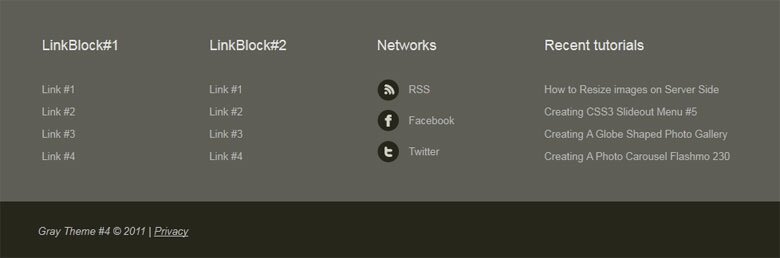
<footer><!-- Defining the footer section of the page -->
<div class="footer">
<div class="footer_wrap container">
<div class="wcont">
<h3 class="title">LinkBlock#1</h3>
<ul>
<li><a href="#" title="link 1">Link #1</a></li>
<li><a href="#" title="link 2">Link #2</a></li>
<li><a href="#" title="link 3">Link #3</a></li>
<li><a href="#" title="link 4">Link #4</a></li>
</ul>
</div>
<div class="wcont">
<h3 class="title">LinkBlock#2</h3>
<ul>
<li><a href="#" title="link 1">Link #1</a></li>
<li><a href="#" title="link 2">Link #2</a></li>
<li><a href="#" title="link 3">Link #3</a></li>
<li><a href="#" title="link 4">Link #4</a></li>
</ul>
</div>
<div class="wcont">
<h3 class="title">Networks</h3>
<ul class="social">
<li><a href="https://www.script-tutorials.com/feed/rss/" title="RSS"><img alt="" src="images/rss.png" />RSS</a></li>
<li><a href="http://www.facebook.com/pages/Script-Tutorials/226050794090255" title="Facebook"><img alt="" src="images/facebook.png" />Facebook</a></li>
<li><a href="http://twitter.com/AramisGC" title="Twitter"><img alt="" src="images/twitter.png" />Twitter</a></li>
</ul>
</div>
<div class="wcont recent">
<h3 class="title">Recent tutorials</h3>
<ul>
<li><a href="https://www.script-tutorials.com/how-to-resize-images-on-server-side/" title="How to Resize images on Server Side">How to Resize images on Server Side</a></li>
<li><a href="https://www.script-tutorials.com/creating-css3-slideout-menu-5/" title="Creating CSS3 Slideout Menu #5">Creating CSS3 Slideout Menu #5</a></li>
<li><a href="https://www.script-tutorials.com/creating-photo-gallery-using-3d-sphere-gallery-fx/" title="Creating A Globe Shaped Photo Gallery using 3D Sphere Gallery FX">Creating A Globe Shaped Photo Gallery</a></li>
<li><a href="https://www.script-tutorials.com/creating-a-photo-carousel-using-flashmo-230-carousel/" title="Creating A Photo Carousel using Flashmo 230 carousel">Creating A Photo Carousel Flashmo 230</a></li>
</ul>
</div>
</div>
</div>
<div class="copyright">
<div class="container">Gray Theme #4 © 2011 | <a href="#">Privacy</a></div>
</div>
</footer>
CSS for footer section
/* footer section */
.footer {
background:url(../images/footer-widget-tail.gif) repeat-x center top #605e57;
overflow:hidden;
padding:57px 0 37px;
}
.footer_wrap .wcont {
display:inline;
float:left;
margin-left:5px;
margin-right:5px;
padding-right:40px;
position:relative;
width:160px;
}
.footer_wrap .recent {
width:260px;
}
.footer_wrap .wcont h3 {
color:#E4E3E3;
font-size:18px;
font-weight:400;
margin-bottom:35px;
}
.footer_wrap .wcont ul {
margin:0;
padding:0;
}
.footer_wrap .wcont ul li {
background:none;
list-style-type:none;
margin:0;
padding:0;
}
.footer_wrap .wcont ul.social li {
margin-bottom:11px !important;
}
.footer_wrap .wcont ul li a {
color:#b7b7b7;
display:inline-block;
height:28px;
line-height:28px;
text-decoration:none;
}
.footer_wrap .wcont ul li:first-child {
margin-top:0;
}
.footer_wrap .wcont ul li a:hover {
color:#e4e3e3;
}
.footer_wrap .wcont ul li img {
float:left;
margin-right:12px;
}
footer .copyright {
background:none repeat scroll 0 0 #28261D;
font-style:italic;
padding:30px 0;
}
footer .copyright,footer .copyright a {
color:#BCBCBC;
}
JS for our template
Here are all necessary custom JS scripts
js/script.js
jQuery(window).load(function() {
    // apply supersubs and superfish for navigation menu
    jQuery('ul.topnav').supersubs({minWidth: 12, maxWidth: 27, extraWidth: 1}).superfish();
    jQuery('ul.topnav').superfish({
        delay: 1000,
        animation: {opacity:'false',height:'show'},
        speed: 'normal',
        autoArrows: false,
        dropShadows: false
    });
    // nivo slider
    jQuery('#slider').nivoSlider({
        effect: 'fade',
        slices:15,
        boxCols:8,
        boxRows:8,
        animSpeed:500,
        pauseTime:5000,
        directionNav:false,
        directionNavHide:false,
        controlNav:true});
});
All other JS files (jquery.js, jquery.nivo.slider.js, superfish.js and supersubs.js) available in package
Live Demo
Conclusion
Congrats, our new template ‘Gray theme’ is complete! You can use this as is, but please leave the back link to us intact. Don`t forget to say thanks :)






I just like the valuable information you provide for your articles. I’ll bookmark your blog and take a look at again right here frequently. I am fairly certain I will learn lots of new stuff right right here! Good luck for the next!